
🎉NEWCapSolver for AI agents-MCP, agent tools, and SDK integrations

Lucas Mitchell
Automation Engineer
Published Mar 12, 2026
Updated Mar 18, 2026 · min read
If you've ever tried to scrape a website protected by enterprise-grade bot detection, you've probably hit an invisible wall: your requests get blocked even though your headers, cookies, and User-Agent are perfect. The reason? TLS fingerprinting — and it happens before your HTTP request is even sent.
Anti-bot services like Cloudflare, Akamai, DataDome, and others inspect the raw TLS handshake to determine whether the client is a real browser or an automation tool. Standard HTTP clients — Go's net/http, Python's requests, curl, Node.js axios — all have distinct TLS fingerprints that get flagged immediately.
In this guide, you'll build a lightweight Go server using httpcloak that spoofs a real Chrome TLS fingerprint, and connect it to your n8n workflows so every HTTP request looks like genuine Chrome browser traffic at the network level.
Every time a client connects to a website over HTTPS, it initiates a TLS handshake by sending a ClientHello message. This message contains:
Anti-bot services extract these values and compute a fingerprint — called a JA3 or JA4 fingerprint — that uniquely identifies the client software. Every browser, HTTP library, and programming language runtime produces a different fingerprint.
| Client | JA3 Fingerprint | Detected As |
|---|---|---|
| Chrome 145 | Unique hash matching Chrome's cipher suite ordering | Real browser |
| Firefox 130 | Different hash — Firefox uses different cipher preferences | Real browser |
Go net/http |
Completely different hash — Go's TLS stack is obvious | Bot / automation tool |
Python requests |
Another distinct hash — Python's urllib3 TLS is identifiable |
Bot / automation tool |
| curl | Yet another hash — curl's TLS fingerprint is well-known | Bot / automation tool |
Node.js axios |
Node.js TLS fingerprint — easily flagged | Bot / automation tool |
The key insight: TLS fingerprinting happens during the handshake, before any HTTP headers are sent. No amount of header manipulation can fix a non-browser TLS fingerprint.
When a browser connects to a website over HTTPS, it sends a TLS ClientHello that includes details about its supported cipher suites, extensions, and settings. Anti-bot services record this fingerprint (called a JA3 or JA4 fingerprint) and compare it to known browser profiles.
Go's net/http, Python's requests, curl, and most HTTP libraries all have distinct TLS fingerprints. Even with correct cookies and headers, anti-bot systems will block the request if they detect a non-browser TLS fingerprint.
Here's what happens step by step:
ClientHelloThis is why setting User-Agent: Mozilla/5.0 (Windows NT 10.0; Win64; x64) ... doesn't help. The User-Agent is an HTTP-level header. TLS fingerprinting operates at a lower layer. If your User-Agent says Chrome but your TLS fingerprint says Go, the request is immediately flagged.
TLS fingerprinting has become standard practice in enterprise bot protection. Here are the major services that check TLS fingerprints:
| Anti-Bot Service | TLS Check | Notes |
|---|---|---|
| Cloudflare Bot Management | Yes | Full-page "Verifying your browser..." challenge. Checks JA3/JA4 on every request |
| Akamai Bot Manager | Yes | Uses TLS fingerprinting as one of many signals in bot scoring |
| DataDome | Yes | Analyzes TLS fingerprint alongside behavioral signals |
| Many others | Varies | TLS fingerprinting is becoming standard in enterprise bot protection |
CapSolver supports solving challenges from many of these services. The TLS server in this guide is designed to work alongside any captcha-solving workflow where the final HTTP fetch needs to look like a real browser — whether you're bypassing Cloudflare Challenge, Akamai, DataDome, or any other anti-bot system.
| Requirement | Notes |
|---|---|
| n8n self-hosted | Required — the TLS server must run on the same machine as n8n. n8n Cloud is not suitable. |
| Go 1.21+ | Must be installed on the server. Check with go version. |
| Process manager (recommended) | Any process manager (systemd, supervisor, Docker, PM2) to keep the TLS server running across reboots |
The TLS server is a lightweight Go HTTP server that accepts requests on port 7878 and forwards them using httpcloak's Chrome-145 TLS preset.
mkdir -p ~/tls-server && cd ~/tls-serverCreate a file called main.go with the following content:
package main

import (
	"context"
	"encoding/json"
	"fmt"
	"io"
	"log"
	"net/http"
	"strings"
	"time"

	"github.com/sardanioss/httpcloak/client"
)

type FetchRequest struct {
	URL     string            `json:"url"`
	Method  string            `json:"method"`
	Headers map[string]string `json:"headers"`
	Proxy   string            `json:"proxy"`
	Body    string            `json:"body"`
}

type FetchResponse struct {
	Status  int                 `json:"status"`
	Body    string              `json:"body"`
	Headers map[string][]string `json:"headers"`
}

type ErrorResponse struct {
	Error string `json:"error"`
}

func writeError(w http.ResponseWriter, status int, msg string) {
	w.Header().Set("Content-Type", "application/json")
	w.WriteHeader(status)
	json.NewEncoder(w).Encode(ErrorResponse{Error: msg})
}

func fetchHandler(w http.ResponseWriter, r *http.Request) {
	if r.Method != http.MethodPost {
		writeError(w, http.StatusMethodNotAllowed, "only POST allowed")
		return
	}

	var req FetchRequest
	if err := json.NewDecoder(r.Body).Decode(&req); err != nil {
		writeError(w, http.StatusBadRequest, "invalid JSON: "+err.Error())
		return
	}

	if req.URL == "" {
		writeError(w, http.StatusBadRequest, "url is required")
		return
	}
	if req.Method == "" {
		req.Method = "GET"
	}

	ctx, cancel := context.WithTimeout(context.Background(), 60*time.Second)
	defer cancel()

	c := client.NewClient("chrome-145", client.WithTimeout(60*time.Second))
	defer c.Close()

	if req.Proxy != "" {
		c.SetProxy(req.Proxy)
	}

	headers := make(map[string][]string, len(req.Headers))
	var userAgent string
	for k, v := range req.Headers {
		lower := strings.ToLower(k)
		if lower == "user-agent" {
			userAgent = v
		} else {
			headers[k] = []string{v}
		}
	}

	var bodyReader io.Reader
	if req.Body != "" {
		bodyReader = strings.NewReader(req.Body)
	}

	hcReq := &client.Request{
		Method:    strings.ToUpper(req.Method),
		URL:       req.URL,
		Headers:   headers,
		Body:      bodyReader,
		UserAgent: userAgent,
		FetchMode: client.FetchModeNavigate,
	}

	resp, err := c.Do(ctx, hcReq)
	if err != nil {
		writeError(w, http.StatusBadGateway, "fetch failed: "+err.Error())
		return
	}

	body, err := resp.Text()
	if err != nil {
		writeError(w, http.StatusInternalServerError, "read body failed: "+err.Error())
		return
	}

	w.Header().Set("Content-Type", "application/json")
	json.NewEncoder(w).Encode(FetchResponse{
		Status:  resp.StatusCode,
		Body:    body,
		Headers: resp.Headers,
	})
}

func main() {
	const port = "7878"

	mux := http.NewServeMux()
	mux.HandleFunc("/fetch", fetchHandler)
	mux.HandleFunc("/health", func(w http.ResponseWriter, r *http.Request) {
		w.Header().Set("Content-Type", "application/json")
		fmt.Fprint(w, `{"status":"ok"}`)
	})

	log.Printf("TLS server (httpcloak chrome-145) listening on :%s", port)
	log.Fatal(http.ListenAndServe(":"+port, mux))
}go mod init tls-server
go get github.com/sardanioss/httpcloak/client
go build -o main main.go./mainThe server runs in the foreground. To keep it running in the background, use any process manager (systemd, supervisor, Docker, etc.) or run it in a screen/tmux session.
curl http://localhost:7878/healthExpected: {"status":"ok"}
Note: The TLS server must run on the same machine as your n8n instance. The n8n workflow calls it at
http://localhost:7878/fetch.
By default, n8n blocks HTTP Request nodes from calling localhost addresses (SSRF protection). You need to disable this so your workflows can reach the TLS server on localhost:7878.
Add the N8N_BLOCK_ACCESS_TO_LOCALHOST=false environment variable and restart your n8n instance. How you do this depends on how you run n8n:
If you run n8n directly:
export N8N_BLOCK_ACCESS_TO_LOCALHOST=false
n8n start
If you use Docker:
Add -e N8N_BLOCK_ACCESS_TO_LOCALHOST=false to your docker run command, or add it to the environment section in your docker-compose.yml.
The TLS server exposes a single endpoint that accepts any HTTP request and forwards it with a Chrome TLS fingerprint.
Endpoint: POST http://localhost:7878/fetch
Request body (JSON):
{
  "url": "https://example.com",
  "method": "GET",
  "headers": {
    "user-agent": "Mozilla/5.0 (Windows NT 10.0; Win64; x64) AppleWebKit/537.36 (KHTML, like Gecko) Chrome/145.0.0.0 Safari/537.36",
    "cookie": "cf_clearance=abc123; session=xyz"
  },
  "proxy": "http://user:pass@host:port",
  "body": ""
}| Field | Type | Required | Description |
|---|---|---|---|
url |
string | Yes | The target URL to fetch |
method |
string | No | HTTP method — defaults to GET |
headers |
object | No | Key-value pairs of HTTP headers to send |
proxy |
string | No | Proxy URL in http://user:pass@host:port format |
body |
string | No | Request body (for POST/PUT requests) |
Response (JSON):
{
  "status": 200,
  "body": "<html>...</html>",
  "headers": { "content-type": ["text/html"], "..." : ["..."] }
}To call the TLS server from an n8n workflow, use an HTTP Request node with these settings:
| Parameter | Value | Description |
|---|---|---|
| Method | POST |
Always POST to the TLS server |
| URL | http://localhost:7878/fetch |
Local TLS server endpoint |
| Content Type | Raw |
Do NOT use JSON — n8n's JSON mode serializes incorrectly |
| Raw Content Type | application/json |
Tell the TLS server the body is JSON |
| Body | ={{ JSON.stringify({ url: "...", method: "GET", headers: {...}, proxy: "..." }) }} |
The actual request to forward |
Important: Using
contentType: "json"withJSON.stringify()in the body causes n8n to double-serialize, sending{"": ""}instead of your data. Always usecontentType: "raw"withrawContentType: "application/json".
In the HTTP Request node body expression:
={{ JSON.stringify({
  url: "https://protected-site.com/data",
  method: "GET",
  headers: {
    "user-agent": "Mozilla/5.0 (Windows NT 10.0; Win64; x64) AppleWebKit/537.36 (KHTML, like Gecko) Chrome/145.0.0.0 Safari/537.36",
    "accept": "text/html,application/xhtml+xml,application/xml;q=0.9,*/*;q=0.8",
    "accept-language": "en-US,en;q=0.9"
  },
  proxy: "http://user:pass@proxy-host:8080"
}) }}
The TLS server will forward this request with a Chrome-145 TLS fingerprint, and the target will see a genuine Chrome browser connection.
Test the TLS server directly from the command line:
curl -X POST http://localhost:7878/fetch \
  -H "Content-Type: application/json" \
  -d '{
    "url": "https://tls-check.example.com",
    "method": "GET",
    "headers": {
      "user-agent": "Mozilla/5.0 (Windows NT 10.0; Win64; x64) AppleWebKit/537.36 (KHTML, like Gecko) Chrome/145.0.0.0 Safari/537.36"
    }
  }'
You can verify your TLS fingerprint by pointing the server at a JA3/JA4 fingerprint checker — the result should match a real Chrome browser, not a Go standard library client.
This workflow creates a webhook endpoint that forwards any request through the TLS server with a Chrome TLS fingerprint. Send a POST with url, method, headers, and optional proxy — the workflow passes it to localhost:7878/fetch and returns the result.
Webhook (POST /tls-fetch) → Fetch via TLS Server → Respond to WebhookCopy the JSON below and import it into n8n via Menu → Import from JSON.
{
  "nodes": [
    {
      "parameters": {
        "content": "## TLS Fetch \u2014 Chrome Fingerprint Proxy\n\n### How it works\n\n1. A webhook receives incoming requests to trigger the workflow.\n2. The workflow sends a POST request to the TLS server to fetch data.\n3. The fetched data is sent back as a response to the initial webhook request.\n\n### Setup steps\n\n- [ ] Set up the webhook URL to capture incoming requests.\n- [ ] Configure the HTTP request node with the correct server endpoint and authentication, if needed.\n- [ ] Ensure the response node is correctly mapped to return expected results.\n\n### Customization\n\nEndpoints and authentication settings in the HTTP request can be adjusted as needed.",
        "width": 480,
        "height": 656
      },
      "type": "n8n-nodes-base.stickyNote",
      "typeVersion": 1,
      "position": [
        -768,
        -112
      ],
      "id": "d41de645-08b4-45a5-ac9b-6c96287f6729",
      "name": "Sticky Note"
    },
    {
      "parameters": {
        "content": "## Webhook initialization\n\nTriggers the workflow through receiving a webhook request.",
        "width": 240,
        "height": 320,
        "color": 7
      },
      "type": "n8n-nodes-base.stickyNote",
      "typeVersion": 1,
      "position": [
        -208,
        -112
      ],
      "id": "a5fbb0e3-ae83-4526-96c9-2b5ceb33b25e",
      "name": "Sticky Note1"
    },
    {
      "parameters": {
        "content": "## TLS data fetch\n\nPerforms a POST request to the TLS server to fetch required data.",
        "width": 240,
        "height": 320,
        "color": 7
      },
      "type": "n8n-nodes-base.stickyNote",
      "typeVersion": 1,
      "position": [
        160,
        -112
      ],
      "id": "a984c3d2-c59a-4a22-b056-dad8d6ae5bd8",
      "name": "Sticky Note2"
    },
    {
      "parameters": {
        "content": "## Send response\n\nResponds to the originating webhook request with the fetched data.",
        "width": 240,
        "height": 320,
        "color": 7
      },
      "type": "n8n-nodes-base.stickyNote",
      "typeVersion": 1,
      "position": [
        448,
        -112
      ],
      "id": "cd733c4f-140c-4c88-a498-1d1636c22a43",
      "name": "Sticky Note3"
    },
    {
      "parameters": {
        "httpMethod": "POST",
        "path": "tls-fetch",
        "responseMode": "responseNode",
        "options": {}
      },
      "type": "n8n-nodes-base.webhook",
      "typeVersion": 2.1,
      "position": [
        -160,
        48
      ],
      "id": "tls-001",
      "name": "Receive Request",
      "webhookId": "tls-001-webhook"
    },
    {
      "parameters": {
        "method": "POST",
        "url": "http://localhost:7878/fetch",
        "sendBody": true,
        "contentType": "raw",
        "rawContentType": "application/json",
        "body": "={{ JSON.stringify($json.body) }}",
        "options": {
          "timeout": 60000
        }
      },
      "type": "n8n-nodes-base.httpRequest",
      "typeVersion": 4.3,
      "position": [
        208,
        48
      ],
      "id": "tls-002",
      "name": "Fetch via TLS Server"
    },
    {
      "parameters": {
        "respondWith": "json",
        "responseBody": "={{ JSON.stringify($json) }}",
        "options": {}
      },
      "type": "n8n-nodes-base.respondToWebhook",
      "typeVersion": 1.5,
      "position": [
        496,
        48
      ],
      "id": "tls-003",
      "name": "Respond to Webhook"
    }
  ],
  "connections": {
    "Receive Request": {
      "main": [
        [
          {
            "node": "Fetch via TLS Server",
            "type": "main",
            "index": 0
          }
        ]
      ]
    },
    "Fetch via TLS Server": {
      "main": [
        [
          {
            "node": "Respond to Webhook",
            "type": "main",
            "index": 0
          }
        ]
      ]
    }
  },
  "pinData": {},
  "meta": {
    "instanceId": "962ff0267b713be0344b866fa54daae28de8ed2144e2e6867da355dae193ea1f"
  }
}You've set up a TLS fingerprint spoofing server that makes n8n's HTTP requests look like genuine Chrome browser traffic at the network level. This is essential for scraping websites protected by anti-bot services that inspect TLS fingerprints.
This TLS server is useful for bypassing:
The httpcloak library with its Chrome-145 preset handles JA3/JA4 fingerprint spoofing, HTTP/2 SETTINGS frames, ALPN negotiation, and header ordering — making your requests indistinguishable from a real Chrome browser at the TLS layer.
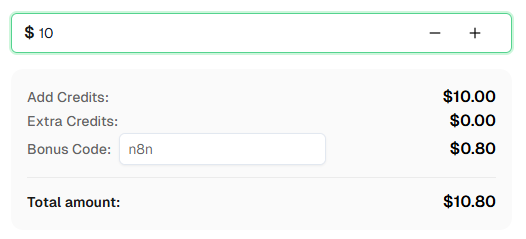
Need to solve CAPTCHAs alongside TLS spoofing? Check out CapSolver — it integrates directly with n8n as an official node and supports Cloudflare Challenge, Turnstile, reCAPTCHA, and many more. Use bonus code n8n for an extra 8% bonus on your first recharge!
TLS fingerprinting is a technique where servers analyze the characteristics of your TLS ClientHello message — including cipher suites, extensions, and their ordering — to identify what software is making the connection. Each HTTP client (Chrome, Firefox, curl, Go, Python) has a unique fingerprint pattern.
The User-Agent header is an HTTP-level attribute. TLS fingerprinting happens at a lower level — during the TLS handshake, before any HTTP headers are sent. Anti-bot services compare both layers: if your User-Agent says Chrome but your TLS fingerprint says Go/Python, the request is flagged as a bot.
httpcloak is a Go library that spoofs real browser TLS profiles. It handles JA3/JA4 fingerprint matching, HTTP/2 SETTINGS frames, ALPN negotiation, and header ordering. The chrome-145 preset makes connections indistinguishable from a real Chrome 145 browser.
Yes. httpcloak supports multiple browser presets. Check the httpcloak documentation for available presets. To change the preset, modify client.NewClient("chrome-145", ...) in main.go to your desired browser profile.
Not easily. The TLS server is a local Go binary that must run on the same machine as n8n so workflows can call http://localhost:7878/fetch. n8n Cloud does not allow running local services alongside workflows. You need a self-hosted n8n instance.
Yes, but you'll need to update the URL in your n8n HTTP Request nodes from http://localhost:7878/fetch to http://your-server-ip:7878/fetch, and ensure port 7878 is accessible. You'll also need to disable n8n's SSRF protection or whitelist the server's IP.
Update the httpcloak dependency: go get -u github.com/sardanioss/httpcloak/client, change the preset string in main.go to the new version, rebuild with go build -o main main.go, and restart the server.
Yes. Go's HTTP server handles concurrent requests natively. Each request creates a new httpcloak client instance with its own TLS connection. For high-volume workloads, monitor memory usage since each connection maintains its own TLS state.
The TLS server adds minimal latency — typically 10-50ms for the local proxy hop. The majority of request time is spent on the actual HTTPS connection to the target. The Chrome TLS handshake is slightly heavier than Go's default, but this is negligible in practice.
Use any process manager — systemd, supervisor, Docker, or similar — to register the TLS server as a service that starts on boot. For a quick setup, you can also run it inside a screen or tmux session.
Lucas Mitchell
Automation Engineer
Helping browser automation recover and continue.
ABOUT THE AUTHOR
Learn how to use the CapSolver n8n template to monitor AWS WAF-protected product pages, solve challenges, extract prices, compare changes, and trigger alerts automatically.

Learn how to build web scrapers in n8n for captcha-protected sites using CapSolver. This step-by-step guide covers solving reCAPTCHA, submitting tokens correctly, extracting product data, and automating workflows with schedule and webhook triggers.