🎉NEWCapSolver for AI agents-MCP, agent tools, and SDK integrations

Adélia Cruz
MCP Integration Engineer
Published Apr 08, 2026
Updated Apr 08, 2026 · min read
The digital landscape is increasingly guarded by security challenges, making a browser extension for automatic CAPTCHA solving an essential tool for developers and power users alike. Whether you are conducting large-scale market research or managing complex data extraction, encountering a CAPTCHA can halt your progress instantly. This guide provides a comprehensive roadmap for selecting, installing, and optimizing a CAPTCHA-solving extension. By conclusion, you will understand how to transition from manual solving to a fully automated workflow that is both efficient and reliable. Our focus is on providing actionable insights that bridge the gap between simple browsing and advanced technical automation.
The evolution of bot detection has led to more sophisticated challenges. Traditional methods often struggle with the dynamic nature of modern security layers. A dedicated extension acts as a bridge, utilizing AI-driven algorithms to interpret and resolve these challenges in real-time. According to W3C Web Accessibility Initiative, CAPTCHAs can often present significant barriers to users, highlighting the need for tools that can streamline the process while maintaining site integrity.
Using a browser extension for automatic CAPTCHA solving ensures that your automated scripts don't fail when they encounter a challenge. This is particularly crucial for maintaining high uptime in data collection pipelines where every second of downtime translates to lost information. The cost of manual intervention is not just time but also the potential for human error, which can be mitigated through reliable automation.
Modern security systems no longer rely on simple distorted text. They now analyze user behavior, hardware fingerprints, and interaction patterns. This shift has made it nearly impossible for basic scripts to navigate the web without a specialized tool. A high-quality browser extension for automatic CAPTCHA solving leverages machine learning models that are trained on millions of samples, allowing them to mimic human interactions with high precision. This is why choosing the right service is paramount for any serious automation project.
| Feature | CapSolver Extension | Buster | SolveCaptcha |
|---|---|---|---|
| Supported Types | Text Captcha, reCAPTCHA, AWS WAF, Turnstile | reCAPTCHA (Audio) | reCAPTCHA, hCaptcha |
| Solving Speed | < 3-5 Seconds | 10-20 Seconds | 5-10 Seconds |
| AI Integration | Advanced Machine Learning | Speech Recognition | Basic AI |
| Developer API | Comprehensive | Limited | Moderate |
| Reliability | High (99.9% Uptime) | Medium | Medium |
| Browser Support | Chrome, Firefox, Edge | Chrome, Firefox | Chrome |
To fully utilize a browser extension for automatic CAPTCHA solving, one must understand the various challenges it can overcome. Each type requires a unique approach and specialized algorithms.
Google's reCAPTCHA remains the most common challenge. While v2 involves selecting images, v3 operates in the background, assigning a score based on perceived risk. A top-tier extension must not only solve the image puzzles but also provide high-score tokens to satisfy v3 requirements.
As a newer entrant, Turnstile aims to be "CAPTCHA-free" for humans while being a nightmare for bots. A browser extension for automatic CAPTCHA solving must be able to handle the underlying cryptographic challenges that Turnstile presents to ensure a smooth transition through the gate.
To achieve the best results, follow this structured approach to environment preparation and integration.
Purpose: To ensure your browser environment is compatible with the extension and can handle automated requests without triggering security flags.
Operation:
Purpose: To link your local extension to the powerful cloud-based solving engine that handles the heavy lifting.
Operation:
Purpose: To define which types of challenges should be solved automatically and how the extension should behave.
Operation:
For those using headless browsers, a browser extension for automatic CAPTCHA solving can be loaded directly into your scripts. This is the preferred method for professional developers who need to avoid IP bans while maintaining high-speed operations.
Based on the official CapSolver documentation, here is how you can load the extension using Puppeteer:
const puppeteer = require('puppeteer');
const path = require('path');

async function run() {
    // Ensure the path points to your unzipped extension directory
    const pathToExtension = path.join(process.cwd(), 'CapSolver.Browser.Extension');

    const browser = await puppeteer.launch({
        headless: false, // Extensions only work in headful mode
        defaultViewport: null,
        args: [
            `--disable-extensions-except=${pathToExtension}`,
            `--load-extension=${pathToExtension}`,
            '--no-sandbox',
            '--disable-setuid-sandbox'
        ],
    });

    const page = await browser.newPage();

    // Navigate to the target page
    await page.goto('https://example.com/captcha-protected-page', {
        waitUntil: 'networkidle2'
    });

    // The extension will automatically detect and solve the CAPTCHA
    // You can implement a custom wait logic to ensure the solution is applied
    console.log('Waiting for CAPTCHA to be solved...');

    // Example: Wait for a specific element that appears after solving
    await page.waitForSelector('#success-message', { timeout: 60000 });

    console.log('CAPTCHA solved successfully!');
    await browser.close();
}
run().catch(console.error);
Purpose of Code: This snippet demonstrates how to initialize a browser instance with the extension pre-loaded, which is critical for automated workflows.
Operations: The --load-extension flag tells Puppeteer where the extension files are located on your disk. Using networkidle2 ensures the page is fully loaded before the extension starts its detection.
Precautions: Ensure the path to the extension is absolute and that the directory contains the manifest.json file. Running in non-headless mode is currently a requirement for most browser extensions to function.
Even with the best CAPTCHA solver, you may encounter hurdles. Understanding why web automation fails on CAPTCHA is the first step to a solution.
| Error | Possible Cause | Detailed Solution |
|---|---|---|
| Invalid API Key | Typo or expired key | Re-copy the key from your dashboard and ensure no trailing spaces exist. |
| Solving Timeout | High network latency | Use a faster proxy or increase the timeout settings in your script. |
| Challenge Not Detected | Dynamic frame loading | Implement a short wait period or use waitForSelector before the extension scans. |
| Insufficient Balance | Empty account funds | Top up your account. Set up low-balance alerts to prevent downtime. |
| Proxy Blocked | Datacenter IP range | Switch to residential or mobile proxies to appear as a legitimate user. |
To maximize the utility of your browser extension for automatic CAPTCHA solving, consider these advanced strategies that separate amateur scripts from professional systems:
Using high-quality residential proxies is essential to mask your automation footprint. This reduces the likelihood of being flagged by advanced security systems that track IP reputation. When an IP is flagged, the difficulty of the CAPTCHA increases significantly.
Don't overwhelm the solver with too many simultaneous requests. Find a balance that maintains speed without sacrificing success rates. High concurrency without proper management can lead to account throttling or increased failure rates.
Implement random delays between requests. Constant, rhythmic patterns are a red flag for most detection systems. Use varied mouse movements and scrolling behaviors to further humanize your automated browser.
Track your success rates across different times of the day and different target sites. This data allows you to fine-tune your configuration for maximum efficiency. According to Google Search Central, managing crawl rates is essential for maintaining a healthy relationship with the sites you visit and ensuring your IP remains in good standing.
While a browser extension for automatic CAPTCHA solving is a powerful tool, it must be used responsibly. Always respect the terms of service of the websites you interact with. Automation should be used to enhance productivity and gather data for legitimate purposes, such as price monitoring, SEO analysis, or academic research.
Ensure your automation adheres to the guidelines set by organizations like the Mozilla Foundation, which advocates for an open and accessible web. Overloading servers with excessive requests can lead to service degradation for other users, which is why rate limiting is both an ethical and technical necessity.
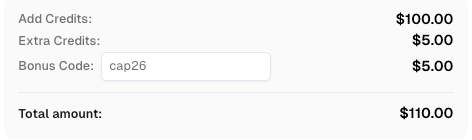
Use code
CAP26when signing up at CapSolver to receive bonus credits!
Integrating a browser extension for automatic CAPTCHA solving into your workflow is a transformative step for any data-driven project. By following the steps outlined in this guide—from environment setup to advanced code integration—you can ensure your automation remains uninterrupted and highly efficient. We recommend using CapSolver for its industry-leading AI technology, comprehensive developer support, and commitment to high success rates. As the web continues to evolve, staying ahead of security challenges with the right tools will be the key to your success in the digital space. Remember to always operate within ethical boundaries and respect the digital ecosystems you interact with.
1. Is it legal to use a browser extension for automatic CAPTCHA solving?
Yes, using these tools is generally legal for personal and professional data collection. However, it is crucial to comply with the target website's terms of service and ensure that your data collection practices adhere to local privacy laws like GDPR or CCPA.
2. Can these extensions solve reCAPTCHA v3 without human intervention?
Yes, advanced extensions like CapSolver are specifically designed to handle reCAPTCHA v3. They work by generating the necessary tokens in the background, which are then submitted to the site to satisfy the security check without requiring any visual interaction from the user.
3. Do I need to keep the browser window open for the extension to work?
In most cases, yes. Browser extensions generally require a "headful" browser instance (a visible window) to execute their scripts correctly. For server-side automation, developers often use tools like Xvfb to create a virtual display, allowing the browser to run "headlessly" while still supporting extension functionality.
4. How does the pricing model work for these services?
Most premium services use a "pay-per-solve" or token-based model. This means you only pay for successful solutions, making it a scalable and cost-effective option for projects of any size. Enterprise users may also have access to subscription plans for high-volume needs.
5. Can I use the extension with multiple browsers simultaneously?
Yes, most services allow you to use your API key across multiple browser instances and different browser types (Chrome, Firefox, etc.). However, you should monitor your account balance and concurrency limits to ensure uninterrupted service.
6. Does using an extension affect my browser's performance?
A well-optimized extension has a minimal footprint. It only activates when a CAPTCHA is detected, ensuring that your general browsing or automation speed is not negatively impacted.
Adélia Cruz
MCP Integration Engineer
Making CapSolver tools accessible through MCP.
ABOUT THE AUTHOR
Discover the best CAPTCHA solver Chrome extension in 2026. Compare top tools like CapSolver and AZcaptcha for speed, accuracy, and AI-powered bypass of reCAPTCHA and Cloudflare.

Use the CapSolver Chrome Extension for AI-powered, one-click solving of Image Captcha and ImageToText challenges directly in your browser.