
🎉NEWCapSolver for AI agents-MCP, agent tools, and SDK integrations

Lucas Mitchell
Automation Engineer
Published Nov 13, 2024
Updated Nov 14, 2024 · min read

BotRight is an advanced Python library for web automation, designed specifically to navigate the increasing complexities of bot detection systems across websites. Unlike basic automation tools, BotRight goes beyond simple interactions by providing nuanced controls that make automated browsing appear highly human-like. This emphasis on human behavior simulation is critical for accessing websites that would typically block or limit bots.
Built on top of Selenium WebDriver, BotRight offers a high-level API that abstracts complex browser interactions into simple commands, allowing both beginners and advanced users to develop sophisticated scrapers and automation scripts without the need to manage low-level browser commands. This makes it an excellent choice for projects ranging from simple data collection to complex, multi-step web tasks that demand resilience against bot-detection algorithms.
BotRight provides several features that make it stand out in the automation landscape:
Human-Like Interactions: BotRight’s design centers on simulating real user actions, such as smooth mouse movements, natural typing patterns, and timing delays. These behaviors reduce the risk of detection and provide more reliable access to content that is typically restricted to genuine users.
Browser State Persistence: By supporting browser profiles, BotRight lets you maintain the session state across multiple automation runs. This feature is particularly useful for tasks that require login persistence or where specific cookies and cache states must be preserved.
Ease of Use: Despite its advanced capabilities, BotRight is remarkably user-friendly. Its API is structured to streamline complex automation tasks, removing much of the technical overhead that usually comes with Selenium setups. Beginners can get started quickly, while experts can leverage BotRight’s flexibility to build highly customized solutions.
Scalability for Complex Workflows: BotRight adapts well to more advanced tasks, including handling AJAX-powered sites, managing paginated data extraction, solving CAPTCHAs, and more. Paired with CAPTCHA solvers like CapSolver, BotRight can handle workflows that require CAPTCHA bypassing, allowing you to automate even heavily guarded websites.
Integrated Extensions and Plugins: BotRight supports the inclusion of various extensions and plugins to enhance automation capabilities. For instance, using tools like CapSolver within BotRight helps manage CAPTCHA challenges, unlocking a wider range of websites for scraping or automation.
Before we begin, ensure you have Python 3.7 or higher installed on your system. Follow these steps to set up Botright:
Install Botright:
pip install botrightInstall the WebDriver Manager:
Botright relies on the webdriver_manager package to manage browser drivers.
pip install webdriver-managerVerify the Installation:
Create a new Python file and import Botright to ensure it's installed correctly.
from botright import BotrightIf no errors occur, Botright is installed correctly.
Let's create simple scripts to scrape data from quotes.toscrape.com using Botright.
Script: scrape_quotes.py
from botright import Botright

def scrape_quotes():
    with Botright() as bot:
        bot.get("https://quotes.toscrape.com/")
        quotes = bot.find_elements_by_css_selector("div.quote")
        for quote in quotes:
            text = quote.find_element_by_css_selector("span.text").text
            author = quote.find_element_by_css_selector("small.author").text
            print(f"\"{text}\" - {author}")

if __name__ == "__main__":
    scrape_quotes()
Run the script:
python scrape_quotes.pyOutput:
“The world as we have created it is a process of our thinking. It cannot be changed without changing our thinking.” - Albert Einstein
...
Explanation:
Botright as a context manager to ensure proper setup and teardown.bot.get().Script: scrape_quotes_pagination.py
from botright import Botright

def scrape_all_quotes():
    with Botright() as bot:
        bot.get("https://quotes.toscrape.com/")
        while True:
            quotes = bot.find_elements_by_css_selector("div.quote")
            for quote in quotes:
                text = quote.find_element_by_css_selector("span.text").text
                author = quote.find_element_by_css_selector("small.author").text
                print(f"\"{text}\" - {author}")

            # Check if there is a next page
            next_button = bot.find_elements_by_css_selector('li.next > a')
            if next_button:
                next_button[0].click()
            else:
                break

if __name__ == "__main__":
    scrape_all_quotes()
Explanation:
find_elements_by_css_selector to locate elements.Script: scrape_dynamic_content.py
from botright import Botright
import time

def scrape_tags():
    with Botright() as bot:
        bot.get("https://quotes.toscrape.com/")
        # Click on the 'Top Ten tags' link to load tags dynamically
        bot.click('a[href="/tag/"]')
        # Wait for the dynamic content to load
        time.sleep(2)
        tags = bot.find_elements_by_css_selector("span.tag-item > a")
        for tag in tags:
            tag_name = tag.text
            print(f"Tag: {tag_name}")

if __name__ == "__main__":
    scrape_tags()
Explanation:
time.sleep().Script: scrape_with_login.py
from botright import Botright

def login_and_scrape():
    with Botright() as bot:
        bot.get("https://quotes.toscrape.com/login")
        # Fill in the login form
        bot.type('input#username', 'testuser')
        bot.type('input#password', 'testpass')
        bot.click("input[type='submit']")

        # Verify login by checking for a logout link
        if bot.find_elements_by_css_selector('a[href="/logout"]'):
            print("Logged in successfully!")

            # Now scrape the quotes
            bot.get("https://quotes.toscrape.com/")
            quotes = bot.find_elements_by_css_selector("div.quote")
            for quote in quotes:
                text = quote.find_element_by_css_selector("span.text").text
                author = quote.find_element_by_css_selector("small.author").text
                print(f"\"{text}\" - {author}")
        else:
            print("Login failed.")

if __name__ == "__main__":
    login_and_scrape()
Explanation:
Note: Since quotes.toscrape.com allows any username and password for demonstration, we can use dummy credentials.
While quotes.toscrape.com does not have CAPTCHAs, many real-world websites do. To prepare for such cases, we'll demonstrate how to integrate CapSolver into our Botright script using the CapSolver browser extension.
Download the Extension:
capsolver-chrome-extension-v0.2.3.zip../capsolver_extension.Locate config.json:
capsolver_extension/assets/config.jsonEdit config.json:
{
  "apiKey": "YOUR_CAPSOLVER_API_KEY",
  "enabledForcaptcha": true,
  "captchaMode": "token",
  "enabledForRecaptchaV2": true,
  "reCaptchaV2Mode": "token",
  "solveInvisibleRecaptcha": true,
  "verbose": false
}"YOUR_CAPSOLVER_API_KEY" with your actual CapSolver API key.enabledForcaptcha and/or enabledForRecaptchaV2 to true based on the CAPTCHA types you expect."token" for automatic solving.To use the CapSolver extension in Botright, we need to configure the browser to load the extension when it starts.
Note: Botright allows you to customize browser options, including adding extensions.
Modified Script:
from botright import Botright
from selenium.webdriver.chrome.options import Options
import os

def create_bot_with_capsolver():
    # Path to the CapSolver extension folder
    extension_path = os.path.abspath('capsolver_extension')

    # Configure Chrome options
    options = Options()
    options.add_argument(f"--load-extension={extension_path}")
    options.add_argument("--disable-gpu")
    options.add_argument("--no-sandbox")

    # Initialize Botright with custom options
    bot = Botright(options=options)
    return bot
Explanation:
Options:
selenium.webdriver.chrome.options, to set Chrome options.options.add_argument() to add the CapSolver extension.options to Botright when creating an instance.We'll demonstrate the integration by navigating to a site with a reCAPTCHA, such as Google's reCAPTCHA demo.
Script: scrape_with_capsolver_extension.py
from botright import Botright
from selenium.webdriver.chrome.options import Options
import os
import time

def solve_captcha_and_scrape():
    # Path to the CapSolver extension folder
    extension_path = os.path.abspath('capsolver_extension')

    # Configure Chrome options
    options = Options()
    options.add_argument(f"--load-extension={extension_path}")
    options.add_argument("--disable-gpu")
    options.add_argument("--no-sandbox")

    # Initialize Botright with custom options
    with Botright(options=options) as bot:
        bot.get("https://www.google.com/recaptcha/api2/demo")

        # Wait for the CAPTCHA to be solved by CapSolver
        print("Waiting for CAPTCHA to be solved...")
        # Adjust sleep time based on average solving time
        time.sleep(15)

        # Verify if CAPTCHA is solved by checking the page content
        if "Verification Success" in bot.page_source:
            print("CAPTCHA solved successfully!")
        else:
            print("CAPTCHA not solved yet or failed.")

if __name__ == "__main__":
    solve_captcha_and_scrape()
Explanation:
options when creating the Botright instance.bot.get() to navigate to the site with a reCAPTCHA.time.sleep() to wait; adjust the time as needed.Important Notes:
extension_path correctly points to your CapSolver extension folder.time.sleep() accordingly.options customizes the driver.Running the Script:
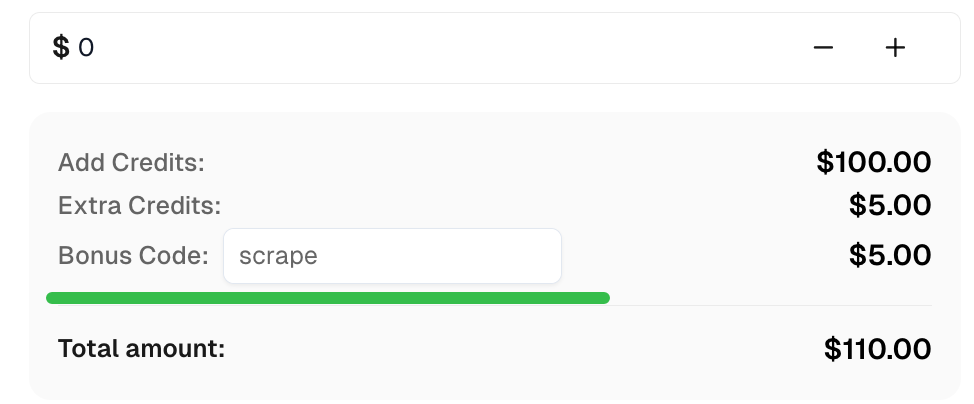
python scrape_with_capsolver_extension.pyClaim your Bonus Code for top captcha solutions at CapSolver: scrape. After redeeming it, you will get an extra 5% bonus after each recharge, unlimited times.
By integrating CapSolver with Botright using the CapSolver browser extension, you can automate CAPTCHA solving in your web scraping projects. This ensures uninterrupted data extraction, even from sites protected by CAPTCHAs.
Key Takeaways:
Lucas Mitchell
Automation Engineer
Helping browser automation recover and continue.
ABOUT THE AUTHOR
Explore three enterprise uses of CAPTCHA solving for SERP API providers: scheduled ranking feeds, market-research batches, and interactive search-data delivery.

Fix common Selenium CAPTCHA integration problems by checking test configuration, extensions, waits, iframe context, solver responses, and application results.