
🎉NEWCapSolver for AI agents-MCP, agent tools, and SDK integrations

Ethan Collins
AI Agent Workflow Engineer
Published Sep 21, 2026
Updated Sep 21, 2026 · min read
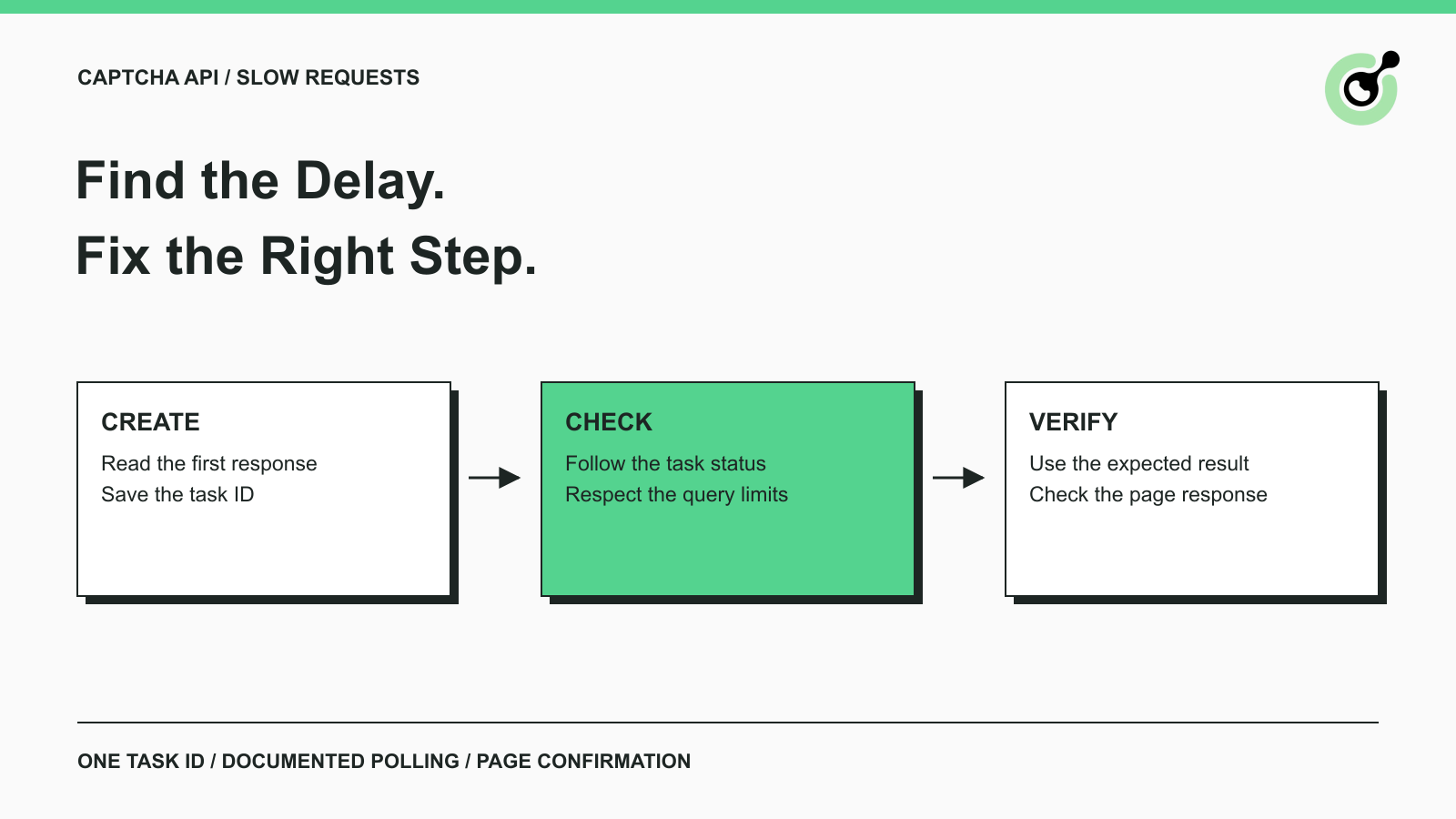
A CAPTCHA request can look slow for several different reasons. The connection may take too long, the solving task may still be running, your code may check infrequently, or the page may reject a result after it arrives. Increasing every timeout at once can hide the real problem.
CapSolver exposes separate task-creation and result-retrieval interfaces, which gives you a practical way to locate the delay. Start with one affected task and follow its progress. This guide explains the documented response fields, the most useful timing checks, and the changes to try first. It does not promise a fixed solving speed or provide an untested retry script.
Find the slow stage by recording when the request starts, when the API responds, when a solution becomes available, and when the page finishes the intended action.
Those events describe different parts of the workflow. An API call is a request and response; a complete CAPTCHA-handling attempt may involve several calls and a later browser action.
Use the following table to decide where to look.
| What you observe | What to inspect first |
|---|---|
| Task creation takes a long time to return | Connection timing, HTTP response, client timeout, and response body |
| A task ID is returned but the result is pending | Status of that same task and the polling interval |
| The API returns a solution but your code keeps waiting | Result parsing, response-field selection, and application wait conditions |
| The page still fails after the solution arrives | Challenge inputs, token freshness, and the site's actual response |
| Delays appear mainly in larger batches | Queueing in your application, request limits, and duplicate attempts |
Record timestamps in the part of the application that makes the API calls. Browser timing tools will not show a server-side solver request that never passes through the browser.
For the browser-side part, the Chrome DevTools Network reference explains the Timing panel and its request phases. Inspecting those phases can help separate connection delays from the time spent waiting for a response.
Read the complete task-creation response before deciding whether the request failed, is still running, or already has a result.
CapSolver's createTask documentation describes two result patterns. Asynchronous tasks return a task ID for later retrieval. Synchronous tasks can return a ready solution in the same response.
A returned task ID does not mean the CAPTCHA is already solved. Save it with the current attempt so the application can query the correct result. Equally, do not make a completed synchronous task wait for a polling loop that it does not need.
Check errors before extracting the next field. If the API reports an error, a missing task ID may be the consequence rather than the underlying cause. Preserve the error code and description for diagnosis.
A client timeout tells you that the caller stopped waiting; it does not, by itself, prove that the server never received the request.
Check the request logs and any response information you retained. If you received a task ID, keep using that ID rather than submitting a duplicate task. If you did not receive one, record the uncertain outcome and investigate before repeatedly sending the same work.
The important practical change is to stop treating every timeout as a reason for an immediate new create request. Repeated submissions can make both cost and timing harder to understand.
Use getTaskResult with the task ID from the original creation response.
The request body below follows the fields in the official getTaskResult interface. The values are placeholders, not a live request or a captured result. To make an actual call, send it as JSON in a POST request to the documented endpoint, using your own key and an existing task ID.
{
  "clientKey": "YOUR_API_KEY",
  "taskId": "TASK_ID_FROM_CREATE_TASK"
}
The endpoint is https://api.capsolver.com/getTaskResult. Keep the key in the service making the request; do not expose it in a public web page.
When errorId is zero, read status. CapSolver documents idle, processing, and ready; a ready result is held in solution. For a processing response, the documentation instructs callers to try again after three seconds.
The same page sets a maximum of 120 result queries per task and a five-minute retrieval window after creation. These are limits to respect, not a guarantee that solving takes that long.
A result can be ready before your application asks for it. If your loop sleeps for a long interval after each request, the observed wait can include time that is unrelated to solving.
Look for fixed sleeps, duplicate waiting layers, and wrappers that already poll internally. Adding another external wait around a helper that waits for completion can make a simple call appear slow.
Follow the documented polling behavior and keep an overall deadline. Polling more aggressively does not make the underlying challenge solve faster.
A solver-task timeout, a result-retrieval window, and a CAPTCHA token's validity are separate constraints.
The first concerns the solving job. The second concerns how long its result remains queryable. The third concerns whether the target site's verification service will accept the returned token.
Google states that reCAPTCHA response tokens are valid for two minutes and can be verified only once. Cloudflare documents a five-minute, single-use lifetime for Turnstile tokens. These are provider-specific rules; do not apply one CAPTCHA family's lifetime to all others.
If a token sits unused while the application performs unrelated work, increasing the API timeout will not solve the later rejection. Use the result in the relevant current workflow and verify the target application's response.
Similarly, do not store tokens as reusable credentials. Keep result handling close to the page action for which the challenge was requested.
Redeem Your CapSolver Bonus Code
Boost your automation budget instantly!
Use bonus code CAP26 when topping up your CapSolver account to get an extra 5% bonus on every recharge — with no limits.
Redeem it now in your CapSolver Dashboard
Use the returned error to decide what to change; several failures will not improve with a longer timeout.
CapSolver's error-code reference is the implementation source for those decisions. In particular:
ERROR_INVALID_TASK_DATA indicates a problem with submitted task data. Read the description and fix the relevant input.ERROR_RATE_LIMIT indicates that the request rate exceeds the applicable service limit. Reduce the request pressure rather than retrying faster.ERROR_TASKID_INVALID means the requested task ID is wrong or no longer available. Check the saved ID and retrieval timing.ERROR_TASK_TIMEOUT reports a solving-task timeout. Treat it as the outcome of that attempt rather than continuing to wait indefinitely.Authentication and balance errors also need their own fixes. A request that cannot be accepted is not simply a slow solving request.
For temporary service errors, use the documented guidance and a bounded retry policy. For unsupported tasks, verify coverage before submitting again. Repeating an unchanged invalid request is unlikely to add useful evidence.
Keep the troubleshooting record small: task type, task ID when present, request time, status, error code, and the step where the application stopped. This makes it easier to compare a successful attempt with an unsuccessful one.
Verify the page's actual outcome after a ready solution arrives, especially when users describe the workflow as “still waiting.”
A result parser may be looking for the wrong field. Different task types return different solution structures. For example, a token task and an image-to-text task should not share an assumption that every response contains the same value.
Use the relevant task guide, such as the reCAPTCHA v2 response specification, to confirm the expected structure. Then check whether the application used that result in the intended page context.
If the page changed while the task was running, inspect the new state before continuing. A navigation, a newly rendered challenge, or an application error can mean the original attempt no longer corresponds to the current page.
Avoid relying only on a success message from the solver wrapper. The useful endpoint is the approved action's own confirmation or the expected page content. If that endpoint is missing, record which stage succeeded and which stage did not.
Change the part that your timing record identifies as slow, one variable at a time.
For an unnecessary wait, remove or adjust the waiting logic according to the documented task flow. For incorrect parameters, fix the inputs. For request-rate errors, reduce concurrency and look for duplicate work. For a slow page action after solving, inspect the browser and application response.
Start with a single permitted task when troubleshooting a larger batch. If that task completes normally on its own, examine your application's queue and concurrency controls before attributing every delay to the service.
Do not compare different challenge families as though they were identical work. Keep timing records grouped by task type and include unsuccessful attempts. A single average can hide a pattern where most requests finish promptly but a small group repeatedly fails.
For background on the factors involved, the CAPTCHA API response-time overview covers the broader topic. Use current task documentation and your own observations for actual timeout settings rather than treating a marketing speed figure as an application guarantee.
When asking for help, provide the timing sequence and a redacted error response. The OWASP logging recommendations support excluding sensitive credentials and session material from ordinary logs.
Do not include the API key, full solution token, or unrelated browser cookies. A clear explanation of where the attempt stopped is more useful than an unrestricted dump of the whole session.
A manageable CAPTCHA integration creates one task, follows its documented result flow, and checks the intended page outcome. When something takes too long, those same steps show where to investigate.
Use CapSolver with task-specific inputs and clear waiting limits. A short, accurate timing record is usually the best starting point for fixing a slow request.
Q: Why is my CAPTCHA API request slow?
The delay may be in the connection, solving task, polling interval, or page action after solving. Record each stage separately so you can identify the relevant fix.
Q: Should I call createTask again while the result is processing?
Do not create another task just because the existing one is processing. Keep the original task ID and follow the documented result-query flow within its limits.
Q: Does polling faster make the CAPTCHA solve faster?
No. Polling only checks whether the result is available. Follow the provider's documented interval and avoid adding unnecessary requests.
Q: Do all CapSolver tasks need getTaskResult?
No. Some tasks return a ready solution directly from createTask. Read the creation response and the selected task's documentation before entering a polling loop.
Q: Why does the page fail after the API returns ready?
A ready solver result does not guarantee application acceptance. Check the expected solution field, current page context, token validity, and the target application's response.
Ethan Collins
AI Agent Workflow Engineer
Building clearer handoffs between AI agents and tools.
ABOUT THE AUTHOR
Solve an image CAPTCHA in Node.js with the documented ImageToTextTask request, local Base64 encoding, direct text results, and a small tested client.

Compare ImageToTextTask and VisionEngine by CAPTCHA input, recognition output, module requirements, and application checks before choosing a solver task.