
🎉NEWCapSolver for AI agents-MCP, agent tools, and SDK integrations

Lucas Mitchell
Automation Engineer
Published Nov 12, 2024
Updated Nov 05, 2024 · min read
Web scraping is a powerful tool for data extraction, market research, and automation. However, CAPTCHAs can hinder automated scraping efforts. In this guide, we'll explore how to use SeleniumBase for web scraping and integrate CapSolver to solve CAPTCHAs efficiently, using quotes.toscrape.com as our example website.

SeleniumBase is a Python framework that simplifies web automation and testing. It extends Selenium WebDriver's capabilities with a more user-friendly API, advanced selectors, automatic waits, and additional testing tools.
Before we begin, ensure you have Python 3 installed on your system. Follow these steps to set up SeleniumBase:
Install SeleniumBase:
pip install seleniumbaseVerify the Installation:
sbase --helpLet's start by creating a simple script that navigates to quotes.toscrape.com and extracts quotes and authors.
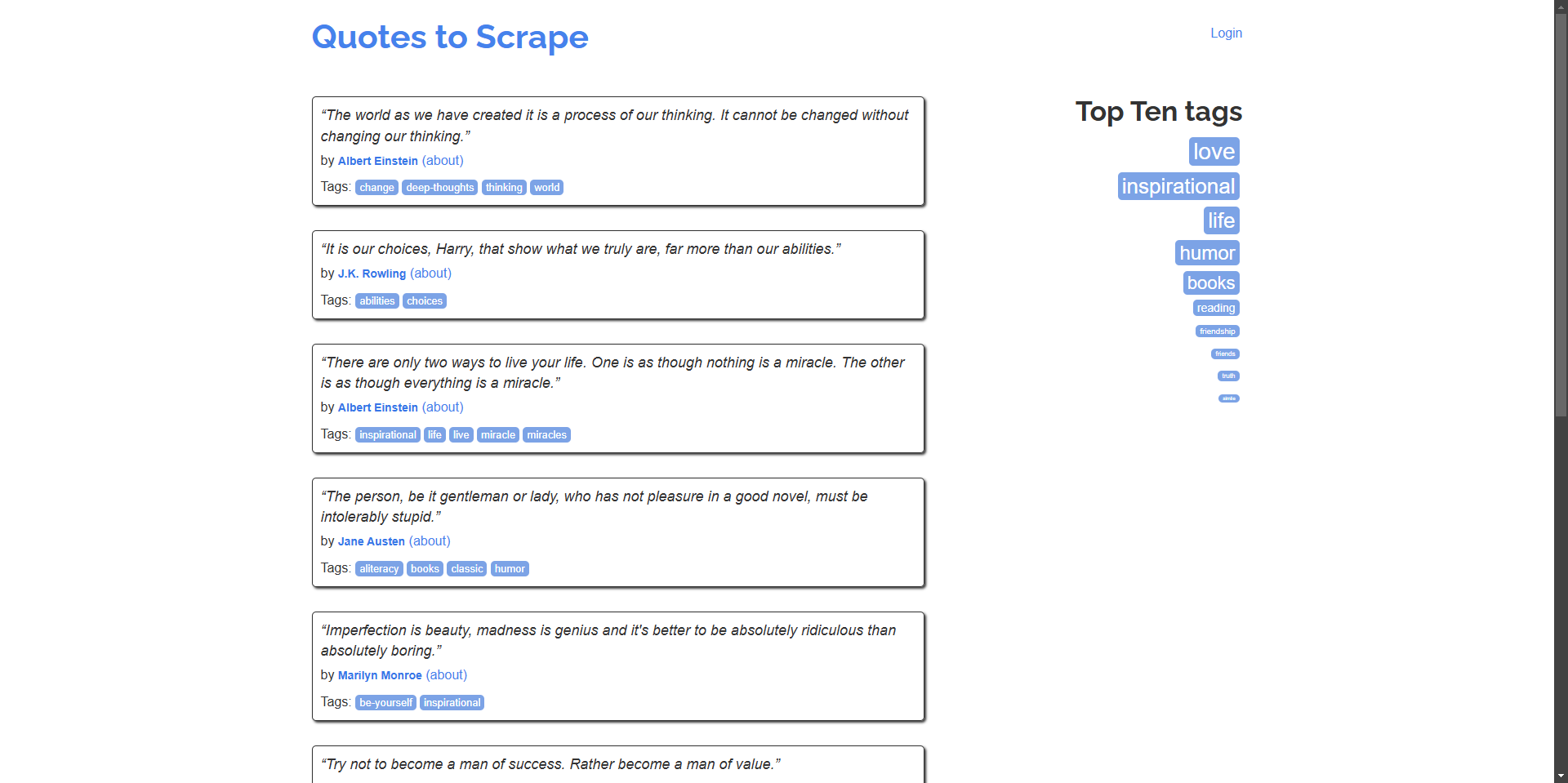
Example: Scrape quotes and their authors from the homepage.
# scrape_quotes.py

from seleniumbase import BaseCase

class QuotesScraper(BaseCase):
    def test_scrape_quotes(self):
        self.open("https://quotes.toscrape.com/")
        quotes = self.find_elements("div.quote")
        for quote in quotes:
            text = quote.find_element("span.text").text
            author = quote.find_element("small.author").text
            print(f"\"{text}\" - {author}")

if __name__ == "__main__":
    QuotesScraper().main()
Run the script:
python scrape_quotes.pyOutput:
“The world as we have created it is a process of our thinking. It cannot be changed without changing our thinking.” - Albert Einstein
...To enhance your web scraping skills, let's explore more advanced examples using SeleniumBase.
Many websites display content across multiple pages. Let's modify our script to navigate through all pages and scrape quotes.
# scrape_quotes_pagination.py

from seleniumbase import BaseCase

class QuotesPaginationScraper(BaseCase):
    def test_scrape_all_quotes(self):
        self.open("https://quotes.toscrape.com/")
        while True:
            quotes = self.find_elements("div.quote")
            for quote in quotes:
                text = quote.find_element("span.text").text
                author = quote.find_element("small.author").text
                print(f"\"{text}\" - {author}")

            # Check if there is a next page
            if self.is_element_visible('li.next > a'):
                self.click('li.next > a')
            else:
                break

if __name__ == "__main__":
    QuotesPaginationScraper().main()
Explanation:
is_element_visible to check for the "Next" button.Some websites load content dynamically using AJAX. SeleniumBase can handle such scenarios by waiting for elements to load.
Example: Scrape tags from the website, which load dynamically.
# scrape_dynamic_content.py

from seleniumbase import BaseCase

class TagsScraper(BaseCase):
    def test_scrape_tags(self):
        self.open("https://quotes.toscrape.com/")
        # Click on the 'Top Ten tags' link to load tags dynamically
        self.click('a[href="/tag/"]')
        self.wait_for_element("div.tags-box")
        tags = self.find_elements("span.tag-item > a")
        for tag in tags:
            tag_name = tag.text
            print(f"Tag: {tag_name}")

if __name__ == "__main__":
    TagsScraper().main()
Explanation:
div.tags-box element to ensure the dynamic content is loaded.wait_for_element ensures that the script doesn't proceed until the element is available.Sometimes, you need to log in to a website before scraping content. Here's how you can handle form submission.
Example: Log in to the website and scrape quotes from the authenticated user page.
# scrape_with_login.py

from seleniumbase import BaseCase

class LoginScraper(BaseCase):
    def test_login_and_scrape(self):
        self.open("https://quotes.toscrape.com/login")
        # Fill in the login form
        self.type("input#username", "testuser")
        self.type("input#password", "testpass")
        self.click("input[type='submit']")

        # Verify login by checking for a logout link
        if self.is_element_visible('a[href="/logout"]'):
            print("Logged in successfully!")

            # Now scrape the quotes
            self.open("https://quotes.toscrape.com/")
            quotes = self.find_elements("div.quote")
            for quote in quotes:
                text = quote.find_element("span.text").text
                author = quote.find_element("small.author").text
                print(f"\"{text}\" - {author}")
        else:
            print("Login failed.")

if __name__ == "__main__":
    LoginScraper().main()
Explanation:
Note: Since quotes.toscrape.com allows any username and password for demonstration, we can use dummy credentials.
Websites often present data in tables. Here's how to extract table data.
Example: Scrape data from a table (hypothetical example as the website doesn't have tables).
# scrape_table.py

from seleniumbase import BaseCase

class TableScraper(BaseCase):
    def test_scrape_table(self):
        self.open("https://www.example.com/table-page")
        # Wait for the table to load
        self.wait_for_element("table#data-table")
        rows = self.find_elements("table#data-table > tbody > tr")
        for row in rows:
            cells = row.find_elements("td")
            row_data = [cell.text for cell in cells]
            print(row_data)

if __name__ == "__main__":
    TableScraper().main()
Explanation:
quotes.toscrape.com doesn't have tables, replace the URL with a real website that contains a table.While quotes.toscrape.com does not have CAPTCHAs, many real-world websites do. To prepare for such cases, we'll demonstrate how to integrate CapSolver into our SeleniumBase script using the CapSolver browser extension.
Download the CapSolver Extension:
./capsolver_extension.Locate the Configuration File:
config.json file located in the capsolver_extension/assets directory.Update the Configuration:
enabledForcaptcha and/or enabledForRecaptchaV2 to true depending on the CAPTCHA types you want to solve.captchaMode or reCaptchaV2Mode to "token" for automatic solving.Example config.json:
{
  "apiKey": "YOUR_CAPSOLVER_API_KEY",
  "enabledForcaptcha": true,
  "captchaMode": "token",
  "enabledForRecaptchaV2": true,
  "reCaptchaV2Mode": "token",
  "solveInvisibleRecaptcha": true,
  "verbose": false
}"YOUR_CAPSOLVER_API_KEY" with your actual CapSolver API key.To use the CapSolver extension in SeleniumBase, we need to configure the browser to load the extension when it starts.
Modify Your SeleniumBase Script:
ChromeOptions from selenium.webdriver.chrome.options.Example:
from seleniumbase import BaseCase
from selenium.webdriver.chrome.options import Options as ChromeOptions
import os

class QuotesScraper(BaseCase):
    def setUp(self):
        super().setUp()

        # Path to the CapSolver extension
        extension_path = os.path.abspath('capsolver_extension')

        # Configure Chrome options
        options = ChromeOptions()
        options.add_argument(f"--load-extension={extension_path}")
        options.add_argument("--disable-gpu")
        options.add_argument("--no-sandbox")

        # Update the driver with the new options
        self.driver.quit()
        self.driver = self.get_new_driver(browser_name="chrome", options=options)
Ensure the Extension Path is Correct:
extension_path points to the directory where you unzipped the CapSolver extension.Here's a complete script that integrates CapSolver into SeleniumBase to solve CAPTCHAs automatically. We'll continue to use https://recaptcha-demo.appspot.com/recaptcha-v2-checkbox.php as our example site.
# scrape_quotes_with_capsolver.py
from seleniumbase import BaseCase
from selenium.webdriver.chrome.options import Options as ChromeOptions
import os

class QuotesScraper(BaseCase):
    def setUp(self):
        super().setUp()

        # Path to the CapSolver extension folder
        # Ensure this path points to the CapSolver Chrome extension folder correctly
        extension_path = os.path.abspath('capsolver_extension')

        # Configure Chrome options
        options = ChromeOptions()
        options.add_argument(f"--load-extension={extension_path}")
        options.add_argument("--disable-gpu")
        options.add_argument("--no-sandbox")

        # Update the driver with the new options
        self.driver.quit()  # Close any existing driver instance
        self.driver = self.get_new_driver(browser_name="chrome", options=options)

    def test_scrape_quotes(self):
        # Navigate to the target site with reCAPTCHA
        self.open("https://recaptcha-demo.appspot.com/recaptcha-v2-checkbox.php")

        # Check for CAPTCHA presence and solve if needed
        if self.is_element_visible("iframe[src*='recaptcha']"):
            # The CapSolver extension should handle the CAPTCHA automatically
            print("CAPTCHA detected, waiting for CapSolver extension to solve it...")

            # Wait for CAPTCHA to be solved
            self.sleep(10)  # Adjust time based on average solving time

        # Proceed with scraping actions after CAPTCHA is solved
        # Example action: clicking a button or extracting text
        self.assert_text("reCAPTCHA demo", "h1")  # Confirm page content

    def tearDown(self):
        # Clean up and close the browser after the test
        self.driver.quit()
        super().tearDown()

if __name__ == "__main__":
    QuotesScraper().main()
Explanation:
setUp Method:
setUp method to configure the Chrome browser with the CapSolver extension before each test.test_scrape_quotes Method:
tearDown Method:
Running the Script:
python scrape_quotes_with_capsolver.pyNote: Even though quotes.toscrape.com doesn't have CAPTCHAs, integrating CapSolver prepares your scraper for sites that do.
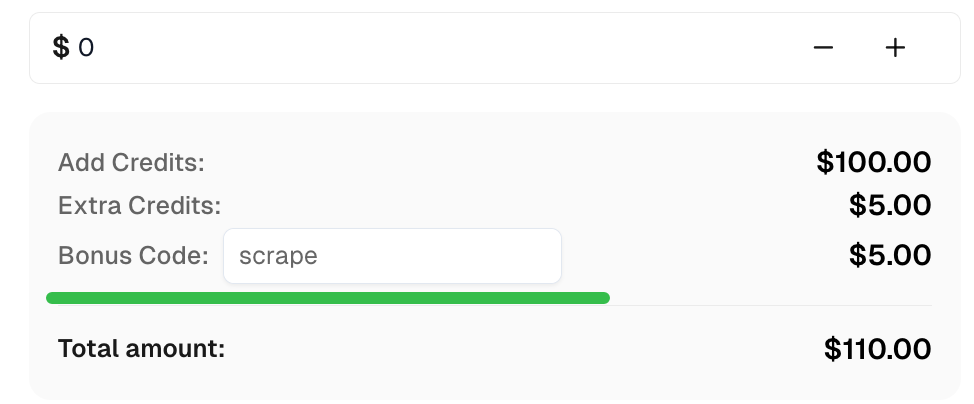
Claim your Bonus Code for top captcha solutions at CapSolver: scrape. After redeeming it, you will get an extra 5% bonus after each recharge, unlimited times.
In this guide, we've explored how to perform web scraping using SeleniumBase, covering basic scraping techniques and more advanced examples like handling pagination, dynamic content, and form submissions. We've also demonstrated how to integrate CapSolver into your SeleniumBase scripts to automatically solve CAPTCHAs, ensuring uninterrupted scraping sessions.
Lucas Mitchell
Automation Engineer
Helping browser automation recover and continue.
ABOUT THE AUTHOR
Explore three enterprise uses of CAPTCHA solving for SERP API providers: scheduled ranking feeds, market-research batches, and interactive search-data delivery.

Fix common Selenium CAPTCHA integration problems by checking test configuration, extensions, waits, iframe context, solver responses, and application results.