
🎉NEWCapSolver for AI agents-MCP, agent tools, and SDK integrations

Ethan Collins
AI Agent Workflow Engineer
Published Oct 10, 2024
Updated Oct 08, 2024 · min read
Web scraping has become an essential skill for gathering data from websites, whether for market analysis, academic research, or any data-driven project. Playwright is an excellent browser automation tool that can be used to scrape websites efficiently, offering support for multiple languages, including Ruby. In this guide, we'll walk through how to set up and use Playwright in Ruby to scrape a website, using quotes.toscrape.com as an example.
Playwright is a modern automation framework for web testing, similar to Selenium but with faster execution and support for all modern browsers like Chromium, Firefox, and WebKit. It offers powerful browser automation tools for headless and headed scraping, page navigation, interacting with forms, and more.
Ruby is a popular language known for its simplicity and developer-friendly syntax. By using Playwright with Ruby, you can leverage the power of modern browser automation while maintaining Ruby’s clean and easy-to-read code structure. Playwright is ideal for web scraping due to its speed, built-in wait-for conditions, and the ability to deal with dynamic content loaded by JavaScript.
To start scraping with Playwright in Ruby, you'll need to set up a few things:
Ensure you have Ruby installed on your machine. You can check this by running the following command in your terminal:
ruby -vIf Ruby is not installed, you can install it via rbenv or directly from Ruby’s official site.
Next, you’ll need to install the playwright-ruby-client gem. This gem provides Playwright bindings for Ruby, allowing you to interact with browsers programmatically.
Run the following command to install the gem:
gem install playwright-ruby-clientAfter installing the gem, you need to install the browsers supported by Playwright. Run the following command:
playwright installThis will download Chromium, Firefox, and WebKit for use with Playwright.
Let’s dive into a simple scraping example where we’ll extract quotes from quotes.toscrape.com. The website contains famous quotes along with the authors, making it a great resource for scraping practice.
First, you need to initialize Playwright and launch a browser (Chromium in this case). Here's how to do that:
require 'playwright-ruby-client'

Playwright.create(playwright_cli_executable_path: '/path/to/cli') do |playwright|
  browser = playwright.chromium.launch(headless: true)  # Launch headless browser
  page = browser.new_page
  page.goto('http://quotes.toscrape.com/')

  puts "Page title: #{page.title}"  # Optional: Print page title to verify it's loaded correctly

  # Close the browser
  browser.close
end
In this snippet, Playwright opens the quotes.toscrape.com page in a headless Chromium browser.
Now, we want to scrape the quotes and their authors from the page. To do this, we need to inspect the page structure and identify the elements containing the quotes and authors.
Here’s the code that extracts the quotes and their respective authors:
require 'playwright-ruby-client'

Playwright.create(playwright_cli_executable_path: '/path/to/cli') do |playwright|
  browser = playwright.chromium.launch(headless: true)
  page = browser.new_page
  page.goto('http://quotes.toscrape.com/')

  # Find all quote elements
  quotes = page.query_selector_all('.quote')

  quotes.each do |quote|
    text = quote.query_selector('.text').text_content.strip
    author = quote.query_selector('.author').text_content.strip
    puts "Quote: #{text} - Author: #{author}"
  end

  browser.close
end
This script uses Playwright to visit the website, extract the quote text and author, and then print them to the console. The .quote class targets each quote block, and we use .text and .author to extract the relevant information.
The quotes website uses pagination, so you may want to scrape all pages, not just the first one. Here's how to handle pagination:
require 'playwright-ruby-client'

Playwright.create(playwright_cli_executable_path: '/path/to/cli') do |playwright|
  browser = playwright.chromium.launch(headless: true)
  page = browser.new_page
  page.goto('http://quotes.toscrape.com/')

  loop do
    quotes = page.query_selector_all('.quote')

    quotes.each do |quote|
      text = quote.query_selector('.text').text_content.strip
      author = quote.query_selector('.author').text_content.strip
      puts "Quote: #{text} - Author: #{author}"
    end

    next_button = page.query_selector('li.next > a')
    break unless next_button  # Exit loop if no next page

    next_button.click
    page.wait_for_load_state('load')  # Wait for the next page to load
  end

  browser.close
end
This code loops through each page by clicking the "Next" button until there are no more pages. It continues to extract the quotes and authors from every page.
This guide explains how to solve reCaptcha using the CapSolver browser extension with Playwright in Ruby. CapSolver provides an easy way to handle captchas without writing extra code to directly solve them.
First, ensure you have Playwright installed:
gem install playwright-ruby-clientDownload the CapSolver extension:
./CapSolver.Browser.Extension.Configure the Extension:
./assets/config.json in the CapSolver extension directory.enabledForcaptcha to true and adjust the captchaMode to token for automatic solving.Example config.json:
{
  "enabledForcaptcha": true,
  "captchaMode": "token"
  // other settings remain the same
}Here’s how you can load the CapSolver extension into the Playwright browser:
Require Playwright and Set Up Paths:
require 'playwright-ruby-client'
require 'fileutils'

# Get the path for the CapSolver extension directory
extension_path = File.join(Dir.pwd, 'CapSolver.Browser.Extension')
Launch the Browser with the CapSolver Extension:
Use Playwright to launch a Chromium browser with the CapSolver extension loaded.
Playwright.create(playwright_cli_executable_path: '/path/to/cli') do |playwright|
  browser = playwright.chromium.launch_persistent_context('', {
    headless: false,  # Run with a visible browser for debugging
    args: [
      "--disable-extensions-except=#{extension_path}",
      "--load-extension=#{extension_path}"
    ]
  })

  page = browser.new_page
  page.goto('https://quotes.toscrape.com/')  # Replace with the target URL

  # Locate the captcha checkbox or frame and interact with it
  page.wait_for_selector('iframe', state: 'visible')  # Adjust the selector to target captcha iframe
  page.click('iframe')  # Adjust the click event for your captcha's interaction

  # Additional steps can be added based on the site’s requirements

  browser.close
end
The steps for solve reCaptcha are the same as captcha.
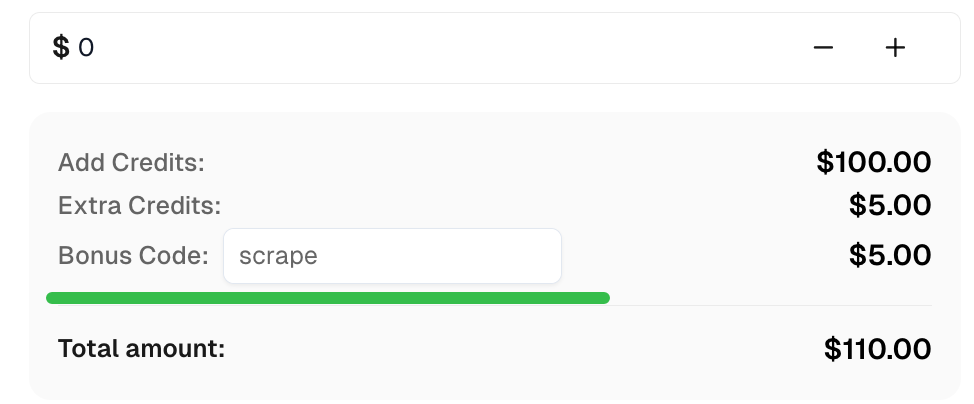
Claim your Bonus Code for top captcha solutions at CapSolver: scrape. After redeeming it, you will get an extra 5% bonus after each recharge, unlimited times.
Using Playwright in Ruby for web scraping offers an efficient and powerful way to extract data from websites. Whether it's simple static content or dynamically loaded pages, Playwright handles both effortlessly. In this tutorial, we scraped quotes and authors from a website, but Playwright can do much more—like interacting with forms, taking screenshots, or even running browser-based tests.
If you're looking for a robust tool for web scraping in Ruby, Playwright is an excellent choice. It's easy to set up, fast, and flexible enough to handle various scraping tasks.
Ethan Collins
AI Agent Workflow Engineer
Building clearer handoffs between AI agents and tools.
ABOUT THE AUTHOR
Explore three enterprise uses of CAPTCHA solving for SERP API providers: scheduled ranking feeds, market-research batches, and interactive search-data delivery.

Fix common Selenium CAPTCHA integration problems by checking test configuration, extensions, waits, iframe context, solver responses, and application results.