
🎉NEWCapSolver for AI agents-MCP, agent tools, and SDK integrations

Lucas Mitchell
Automation Engineer
Published Jun 09, 2025
Updated Jun 09, 2025 · min read
Selenium is an open-source automation testing tool primarily used for automating web applications. It is also commonly used for web scraping and automating website interactions. Selenium can simulate various user behaviors in a browser, such as clicking, typing, scrolling, and switching pages. It was originally developed by Jason Huggins in 2004 and is now maintained by the Selenium project team. Selenium supports multiple programming languages, including Python, Java, C#, Ruby, and JavaScript.
Selenium consists of the following core components:
Selenium WebDriver (most commonly used)
chromedriver or geckodriver.Selenium IDE
Selenium Grid
To use Selenium in Python:
pip install seleniumTo use Selenium with Chrome, download the chromedriver that matches your Chrome version from Github
Example: Using Selenium to get all blog post titles from CapSolver’s blog:
from selenium import webdriver
from selenium.webdriver.chrome.service import Service
from selenium.webdriver.chrome.options import Options
from selenium.webdriver.common.by import By
from selenium.webdriver.support.ui import WebDriverWait
from selenium.webdriver.support import expected_conditions as EC

chrome_options = Options()
chrome_options.add_argument("--start-maximized")

# Specify chromedriver path (if already added to PATH, can be omitted)
service = Service(executable_path="chromedriver.exe")
driver = webdriver.Chrome(options=chrome_options, service=service)

try:
    driver.get("https://www.capsolver.com/blog/All")
    WebDriverWait(driver, 10).until(EC.presence_of_element_located((By.TAG_NAME, 'h5')))

    h5_elements = driver.find_elements(By.TAG_NAME, "h5")
    for el in h5_elements:
        print(el.text.strip())

finally:
driver.quit()Selenium is a powerful tool that supports loading browser extensions just like a regular browser.
Download the latest extension .zip package from the official CapSolver GitHub and unzip it:
👉 https://github.com/capsolver/capsolver-browser-extension/releases
In Selenium’s startup options, use the load-extension argument to specify the extension path:
from selenium import webdriver
from selenium.webdriver.chrome.service import Service
from selenium.webdriver.chrome.options import Options
from selenium.webdriver.common.by import By
from selenium.webdriver.support.ui import WebDriverWait
from selenium.webdriver.support import expected_conditions as EC

chrome_options = Options()
chrome_options.add_argument("--start-maximized")
chrome_options.add_argument("load-extension=/path/to/capSolver extension")

# Specify chromedriver path (omit if already in PATH)
service = Service(executable_path="chromedriver.exe")
driver = webdriver.Chrome(options=chrome_options, service=service)

try:
    driver.get("https://www.capsolver.com/blog/All")
    WebDriverWait(driver, 10).until(EC.presence_of_element_located((By.TAG_NAME, 'h5')))

    h5_elements = driver.find_elements(By.TAG_NAME, "h5")
    for el in h5_elements:
        print(el.text.strip())

finally:
    driver.quit()
⚠️ Important: Starting from Chrome v137, browser automation may fail to load extensions unless you manually add the following argument.
Without this flag, solving CAPTCHAs via extensions will not work on Chrome 137+:
pythonchrome_options.add_argument("--disable-features=DisableLoadExtensionCommandLineSwitch")
More details: SeleniumHQ. Different versions may behave differently—adjust according to your environment.
CAPTCHAs like reCAPTCHA, Cloudflare Turnstile, AWS WAF, and GeeTest are widely used across thousands of websites. However, their DOM structures remain mostly consistent across sites. CapSolver Extension can automatically detect and solve these CAPTCHAs based on their distinct characteristics—no manual interaction is needed.
Let’s take reCAPTCHA v2 as an example and demonstrate how to use CapSolver Extension within Selenium to bypass it.
(Note: unless otherwise stated, the following demo uses click mode: set in /assets/config.js → reCaptchaMode: 'click')
🛠️ Don’t forget to unzip the extension and configure your
apiKeyin/assets/config.js
import time
from selenium import webdriver
from selenium.webdriver.chrome.service import Service
from selenium.webdriver.chrome.options import Options
from selenium.webdriver.common.by import By
from selenium.webdriver.support.ui import WebDriverWait
from selenium.webdriver.support import expected_conditions as EC

chrome_options = Options()
chrome_options.add_argument("--start-maximized")

# Step 1: Get the extension from GitHub: https://github.com/capsolver/capsolver-browser-extension/releases
# Step 2: Unzip the extension and set your apiKey in /assets/config.js
chrome_options.add_argument("load-extension=/path/to/CapSolver Browser Extension-v1.16.0")

# Specify chromedriver path (omit if already in PATH)
service = Service(executable_path="chromedriver.exe")
driver = webdriver.Chrome(options=chrome_options, service=service)

try:
    driver.get("https://recaptcha-demo.appspot.com/recaptcha-v2-checkbox.php")
    WebDriverWait(driver, 10).until(EC.presence_of_element_located((By.CSS_SELECTOR, 'form[action="/recaptcha-v2-checkbox.php"]')))

    # The extension will automatically detect and solve the reCAPTCHA
    time.sleep(15)

    # After solving, click the submit button
    submit_button = driver.find_element(By.CSS_SELECTOR, 'button[type="submit"]')
    submit_button.click()
    time.sleep(3)

except Exception as error:
    print(error)

finally:
    driver.quit()
CapSolver Extension also supports many useful configuration options. All settings can be adjusted in the
/assets/config.jsfile.
solvedCallback Configuration OptionIn the previous example, we waited 15 seconds after loading the page before clicking the submit button. This waiting period was intended to give the CapSolver extension enough time to automatically solve the reCAPTCHA.
However, this approach isn’t elegant. In practice, solving the CAPTCHA might take much less than 15 seconds, or in cases of a slow network, more than 15 seconds.
To address this, CapSolver provides a configuration option called solvedCallback. This allows you to define a callback function that gets triggered once the CAPTCHA is successfully solved. You can find the solvedCallback option in /assets/config.js, and you can customize the function name—by default, it's captchaSolvedCallback.
If you're using Puppeteer or Playwright, you can expose this callback function to the browser context using the page.exposeFunction method. See:
What About Python + Selenium?
Unfortunately, Python’s Selenium does not provide a built-in equivalent to page.exposeFunction, so the solvedCallback feature cannot be fully utilized in this environment.
Instead, we recommend using DOM observation to determine whether the CAPTCHA has been solved. For example, you can check if the "I'm not a robot" checkbox has disappeared or turned into a checkmark (✔), indicating that the validation is complete.
Let’s improve the previous example by using this strategy:
import time
from selenium import webdriver
from selenium.webdriver.chrome.service import Service
from selenium.webdriver.chrome.options import Options
from selenium.webdriver.common.by import By
from selenium.webdriver.support.ui import WebDriverWait
from selenium.webdriver.support import expected_conditions as EC

chrome_options = Options()
chrome_options.add_argument("--start-maximized")

# Step 1: Get the extension from GitHub: https://github.com/capsolver/capsolver-browser-extension/releases
# Step 2: Unzip the extension and set your apiKey in /assets/config.js
chrome_options.add_argument("load-extension=/path/to/CapSolver Browser Extension-v1.16.0")

# Specify chromedriver path (omit if already in PATH)
service = Service(executable_path="chromedriver.exe")
driver = webdriver.Chrome(options=chrome_options, service=service)

def check_recaptcha_status(driver):
    try:
        iframe = driver.find_element(By.CSS_SELECTOR, 'iframe[src*="recaptcha"]')
        driver.switch_to.frame(iframe)

        # Check if the class name indicates the checkbox has been checked
        recaptcha_anchor = driver.find_element(By.ID, "recaptcha-anchor")
        class_list = recaptcha_anchor.get_attribute("class")
        driver.switch_to.default_content()
        if "recaptcha-checkbox-checked" in class_list.split():
            return True
        else:
            return False
    except Exception as e:
        print(f"Failed to check reCAPTCHA status: {e}")
        driver.switch_to.default_content()
        return False

try:
    driver.get("https://recaptcha-demo.appspot.com/recaptcha-v2-checkbox.php")
    WebDriverWait(driver, 10).until(EC.presence_of_element_located((By.CSS_SELECTOR, 'form[action="/recaptcha-v2-checkbox.php"]')))

    # The extension will automatically recognize and solve the CAPTCHA.
    # Instead of sleeping a fixed time, check periodically.
    timeout = 30
    start_time = time.time()
    while time.time() - start_time < timeout:
        if check_recaptcha_status(driver):
            print("reCAPTCHA verification successful!")
            submit_button = driver.find_element(By.CSS_SELECTOR, 'button[type="submit"]')
            submit_button.click()
            time.sleep(3)
            driver.quit()
            break
        time.sleep(1)

except Exception as error:
    print(error)

finally:
    driver.quit()
manualSolving Configuration OptionIn the previous examples, the CAPTCHA solving process starts automatically as soon as the page finishes loading. However, in some cases, you may need to perform other actions first—such as filling in a username and password—before triggering the CAPTCHA solver. Solving the CAPTCHA too early may result in the token expiring before submission.
The manualSolving option is designed to address this issue. By setting manualSolving: true in /assets/config.js, you can manually trigger CAPTCHA solving using one of the following two methods:
window.postMessage({ type: 'capsolverSolve' });The following example demonstrates how to use both methods:
import time
from selenium import webdriver
from selenium.webdriver.chrome.service import Service
from selenium.webdriver.chrome.options import Options
from selenium.webdriver.common.by import By
from selenium.webdriver.support.ui import WebDriverWait
from selenium.webdriver.support import expected_conditions as EC

chrome_options = Options()
chrome_options.add_argument("--start-maximized")

# Step 1: Get the extension from GitHub (https://github.com/capsolver/capsolver-browser-extension/releases)
# Step 2: Unzip the extension and configure your apiKey in /assets/config.js
chrome_options.add_argument("load-extension=/path/to/CapSolver Browser Extension-v1.16.0")

# Specify chromedriver path (omit if already in PATH)
service = Service(executable_path="chromedriver.exe")
driver = webdriver.Chrome(options=chrome_options, service=service)

def check_recaptcha_status(driver):
    try:
        iframe = driver.find_element(By.CSS_SELECTOR, 'iframe[src*="recaptcha"]')
        driver.switch_to.frame(iframe)

        # Determine whether the checkbox has been checked
        recaptcha_anchor = driver.find_element(By.ID, "recaptcha-anchor")
        class_list = recaptcha_anchor.get_attribute("class")
        driver.switch_to.default_content()
        if "recaptcha-checkbox-checked" in class_list.split():
            return True
        else:
            return False
    except Exception as e:
        print(f"Failed to check reCAPTCHA status: {e}")
        driver.switch_to.default_content()
        return False

try:
    driver.get("https://recaptcha-demo.appspot.com/recaptcha-v2-checkbox.php")
    WebDriverWait(driver, 10).until(EC.presence_of_element_located((By.CSS_SELECTOR, 'form[action="/recaptcha-v2-checkbox.php"]')))

    # Simulate user input
    driver.execute_script("""
        const inputA = document.querySelector('input[name="ex-a"]');
        inputA.value = 'username';
        const inputB = document.querySelector('input[name="ex-b"]');
        inputB.value = 'password';
    """)

    # Simulate additional operations
    for i in range(1, 6):
        time.sleep(1)
        print(f"Waited {i} seconds...")

    # Trigger CAPTCHA solving (manualSolving must be set to true in config.js)
    print("Start solving captcha...")

    # Method 1: Simulate clicking the CapSolver button
    try:
        capsolver_button = WebDriverWait(driver, 10).until(EC.presence_of_element_located((By.CSS_SELECTOR, "#capsolver-solver-tip-button")))
        driver.execute_script("arguments[0].click();", capsolver_button)
    except Exception as e:
        print(f"Unable to find CapSolver button: {e}")

    # Method 2: Trigger via postMessage (alternative method)
    # driver.execute_script("window.postMessage({ type: 'capsolverSolve' });")

    # Wait for the CAPTCHA to be solved and submit the form
    timeout = 30
    start_time = time.time()
    while time.time() - start_time < timeout:
        if check_recaptcha_status(driver):
            print("reCAPTCHA verification successful!")
            submit_button = driver.find_element(By.CSS_SELECTOR, 'button[type="submit"]')
            submit_button.click()
            time.sleep(3)
            driver.quit()
            break
        time.sleep(1)

except Exception as error:
    print(error)

finally:
    driver.quit()
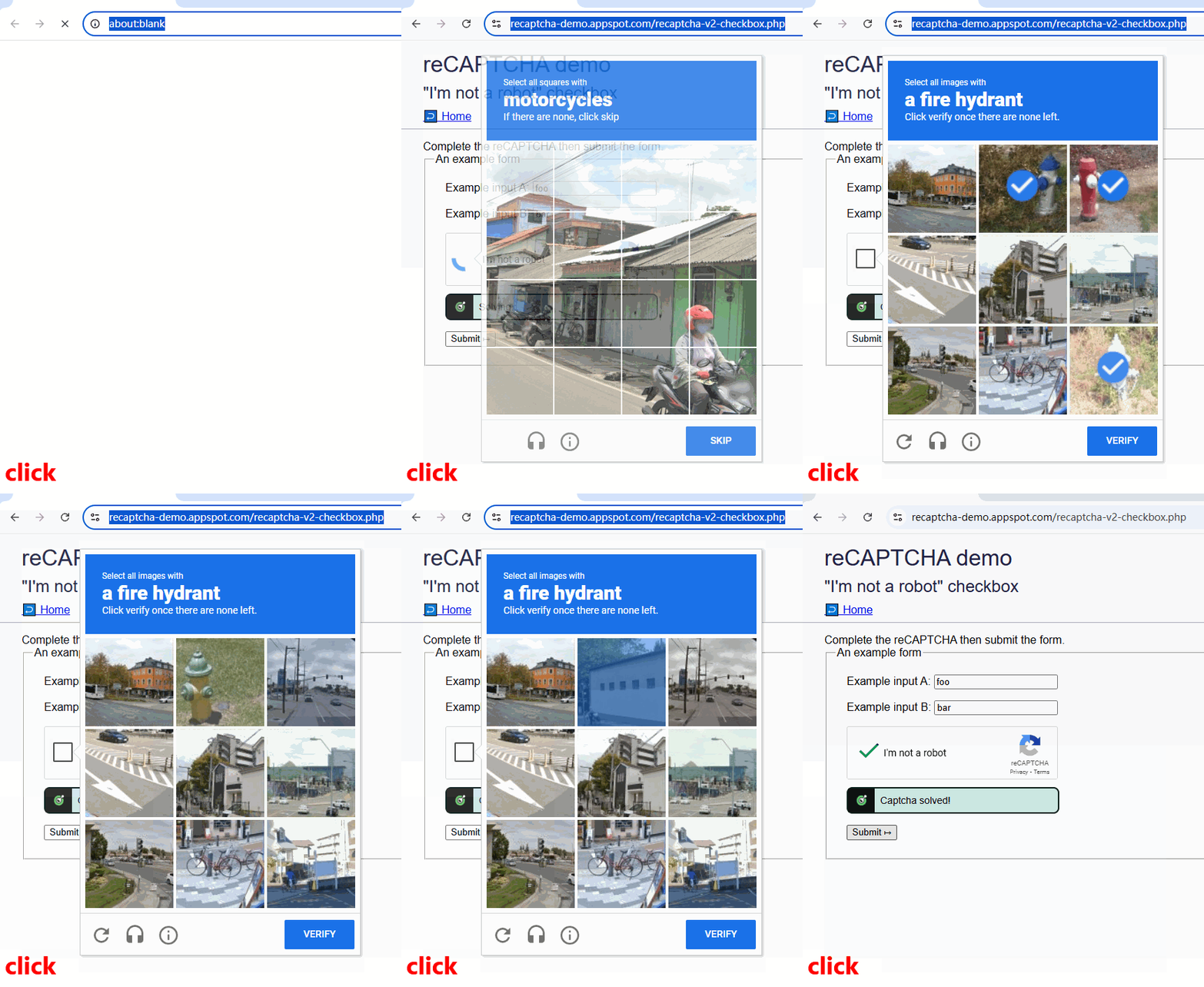
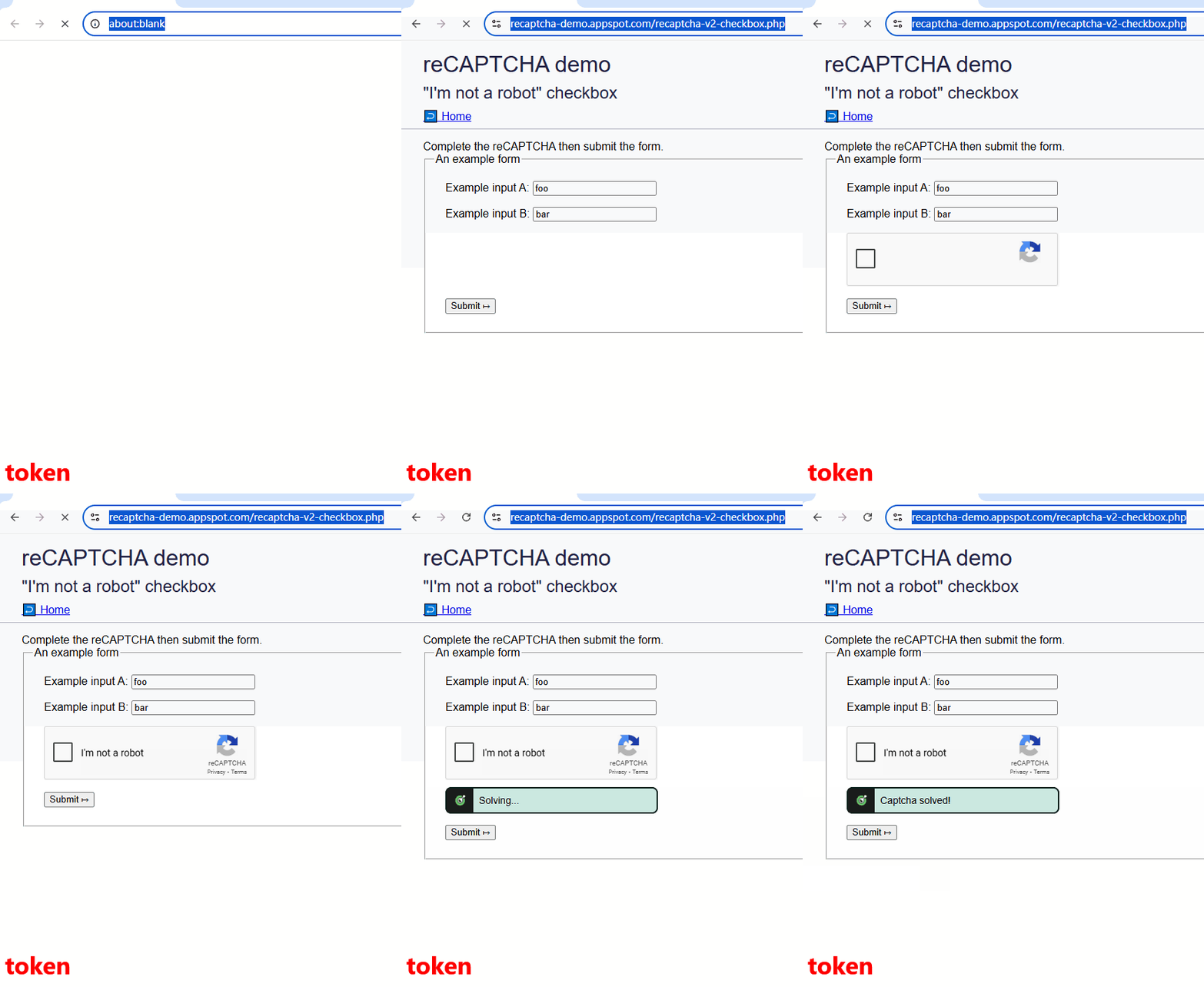
reCaptchaMode ConfigurationreCaptchaMode supports two modes: click and token.
If you notice that using the click mode requires multiple rounds of image challenges, it likely indicates a low-quality local environment. In that case, it’s recommended to use the token mode for better performance.
| Click Mode | Token Mode |
|---|---|
 |
 |
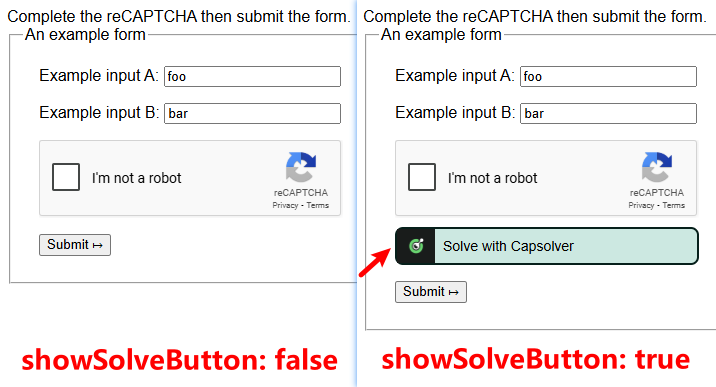
showSolveButton ConfigurationWhen you set showSolveButton: false (default is true), the CapSolver solve button will no longer appear on the page.
However, this does not affect the CAPTCHA-solving functionality—it will still work normally in the background.
useProxy ConfigurationAfter enabling useProxy: true, you can specify the following proxy settings:
proxyTypehostOrIpportproxyLoginproxyPasswordWe will then use your custom proxy to solve the CAPTCHA.
When should you use your own proxy? Here are two common scenarios:
The above are some commonly used configuration options. You can adjust other settings according to your actual needs. If you have any questions, please contact our customer support.
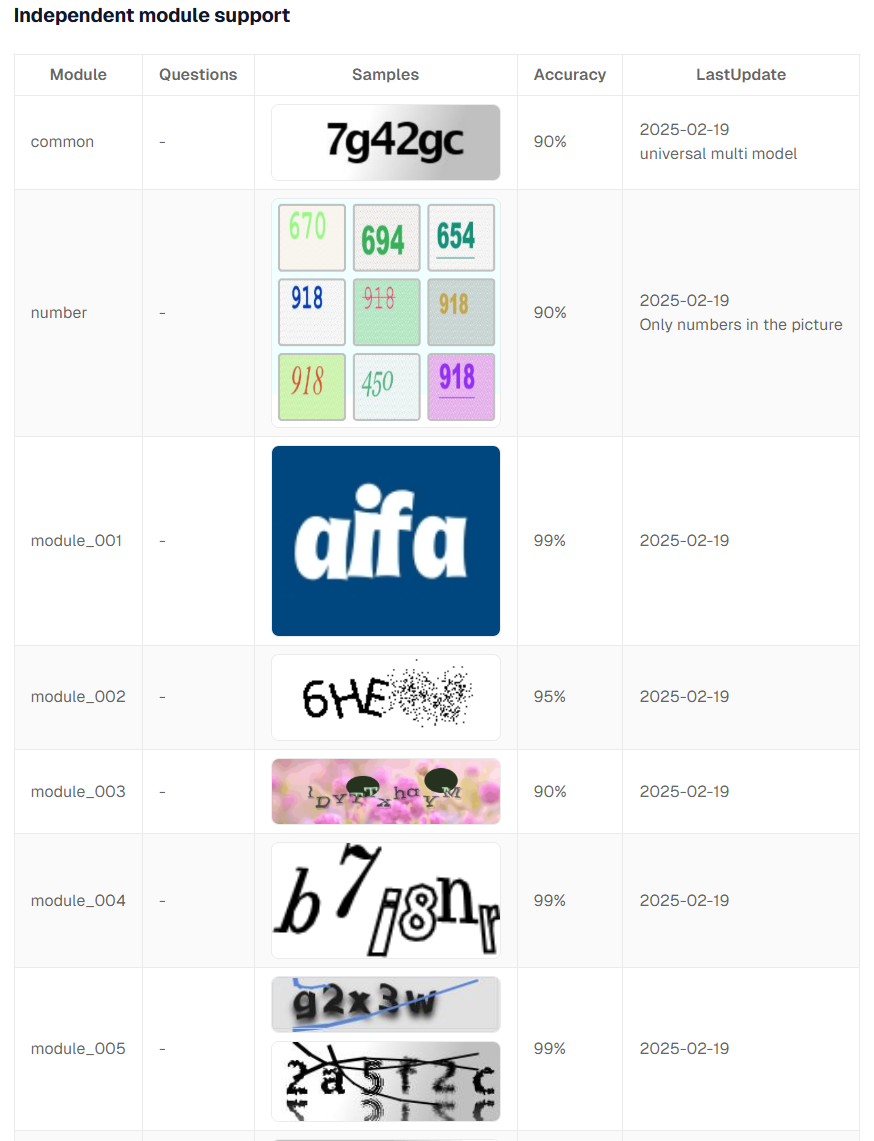
Unlike third-party CAPTCHAs like reCAPTCHA, Cloudflare Turnstile, AWS WAF, there is another category of CAPTCHA that requires recognizing letters or numbers from an image — we refer to these as ImageToText CAPTCHAs. They typically look like this:
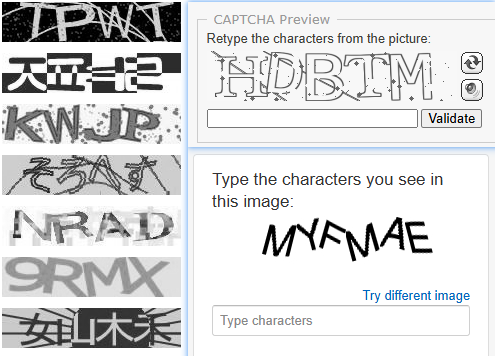
ImageToText CAPTCHAs are usually custom implementations by website owners. Because the placement of these CAPTCHAs varies across different websites and pages, CapSolver Extension cannot automatically detect which images are CAPTCHAs. You need to manually indicate this in your code.
capsolver-image-to-text-source attribute (value 0) to the CAPTCHA image element.capsolver-image-to-text-result attribute (value 0) to the result input element.Both capsolver-image-to-text-source and capsolver-image-to-text-result can be configured in /assets/config.js, under the options textCaptchaSourceAttribute and textCaptchaResultAttribute, respectively.
Let’s take demo as an example, and demonstrate how to solve an ImageToText CAPTCHA using Selenium:
From the page source, we identify:
demoCaptcha_CaptchaImagecaptchaCodeLike this:
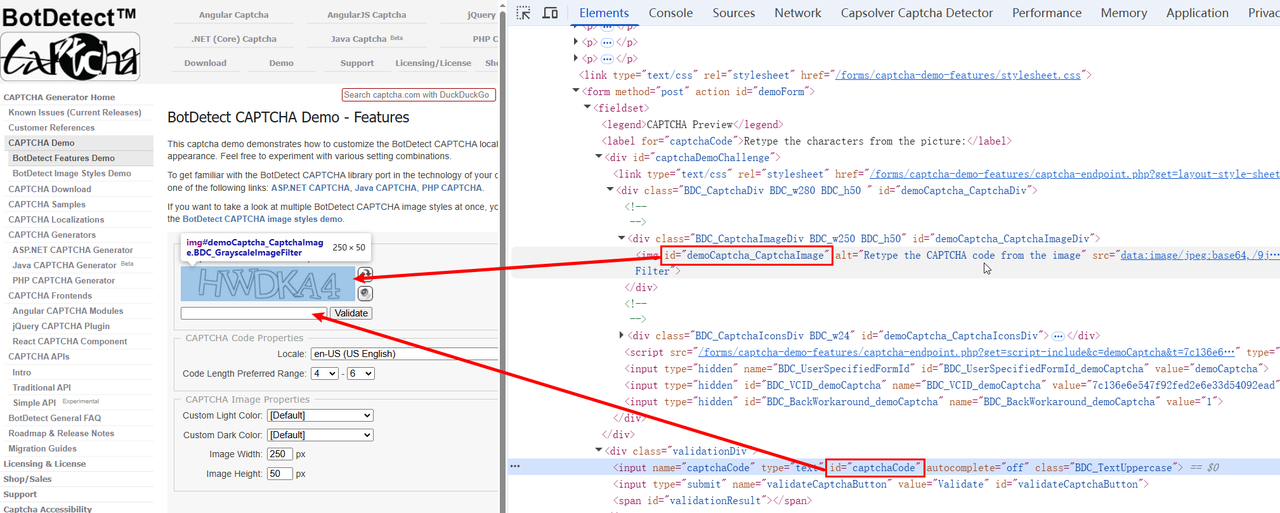
We can now add the required attributes using the setAttribute method in our Selenium script:
import time
from selenium import webdriver
from selenium.webdriver.chrome.service import Service
from selenium.webdriver.chrome.options import Options
from selenium.webdriver.common.by import By
from selenium.webdriver.support.ui import WebDriverWait
from selenium.webdriver.support import expected_conditions as EC

chrome_options = Options()
chrome_options.add_argument("--start-maximized")

# Step 1: Get the extension from GitHub (https://github.com/capsolver/capsolver-browser-extension/releases)
# Step 2: Unzip the extension zip file and configure your apiKey in /assets/config.js
chrome_options.add_argument("load-extension=/path/to/CapSolver Browser Extension-v1.16.0")

# Specify the path to chromedriver (can omit if added to PATH)
service = Service(executable_path="chromedriver.exe")
driver = webdriver.Chrome(options=chrome_options, service=service)

try:
    driver.get("https://captcha.com/demos/features/captcha-demo.aspx")
    WebDriverWait(driver, 10).until(EC.presence_of_element_located((By.CSS_SELECTOR, '#demoCaptcha_CaptchaImage')))

    # Tell the CapSolver extension where the CAPTCHA image is
    driver.execute_script("""
        const imgElement = document.querySelector('#demoCaptcha_CaptchaImage');
        if (imgElement) {
            imgElement.setAttribute('capsolver-image-to-text-source', '0');
        }
    """)

    # Tell the CapSolver extension where the recognition result should be entered
    driver.execute_script("""
        const resultElement = document.querySelector('#captchaCode');
        if (resultElement) {
            resultElement.setAttribute('capsolver-image-to-text-result', '0');
        }
    """)

    time.sleep(5)
    validate_button = WebDriverWait(driver, 10).until(EC.element_to_be_clickable((By.ID, 'validateCaptchaButton')))
    validate_button.click()
    time.sleep(5)

except Exception as error:
    print(error)

finally:
    driver.quit()
Expected Result:

Using the CapSolver browser extension is convenient and fast. However, if you're an experienced developer, we recommend using the API method instead. Compared to the extension-based integration, the API approach has several advantages:
You’ll need to understand how to use the CapSolver API. The process involves two steps:
https://api.capsolver.com/createTaskhttps://api.capsolver.com/getTaskResultWhen creating a task, you need to send a JSON payload to CapSolver, which typically includes parameters such as your clientKey, websiteURL, websiteKey, etc. These parameters vary depending on the type of CAPTCHA and the target website. For full details, refer to our documentation
Before solving reCAPTCHA v2, please refer to the guide:
👉 https://docs.capsolver.com/en/guide/captcha/ReCaptchaV2/
It explains exactly which JSON fields to include in your request.
Additionally, you can use the CapSolver extension to quickly extract the required JSON data. See this blog for help:
🔗 obtain the JSON data
Let's take the following example: https://recaptcha-demo.appspot.com/recaptcha-v2-checkbox.php,
The JSON payload needed is:
{
    "type": "ReCaptchaV2TaskProxyLess",
    "websiteKey": "6LfW6wATAAAAAHLqO2pb8bDBahxlMxNdo9g947u9",
    "websiteURL": "https://recaptcha-demo.appspot.com/recaptcha-v2-checkbox.php"
}
We also provide Python code samples for using the API in our documentation:
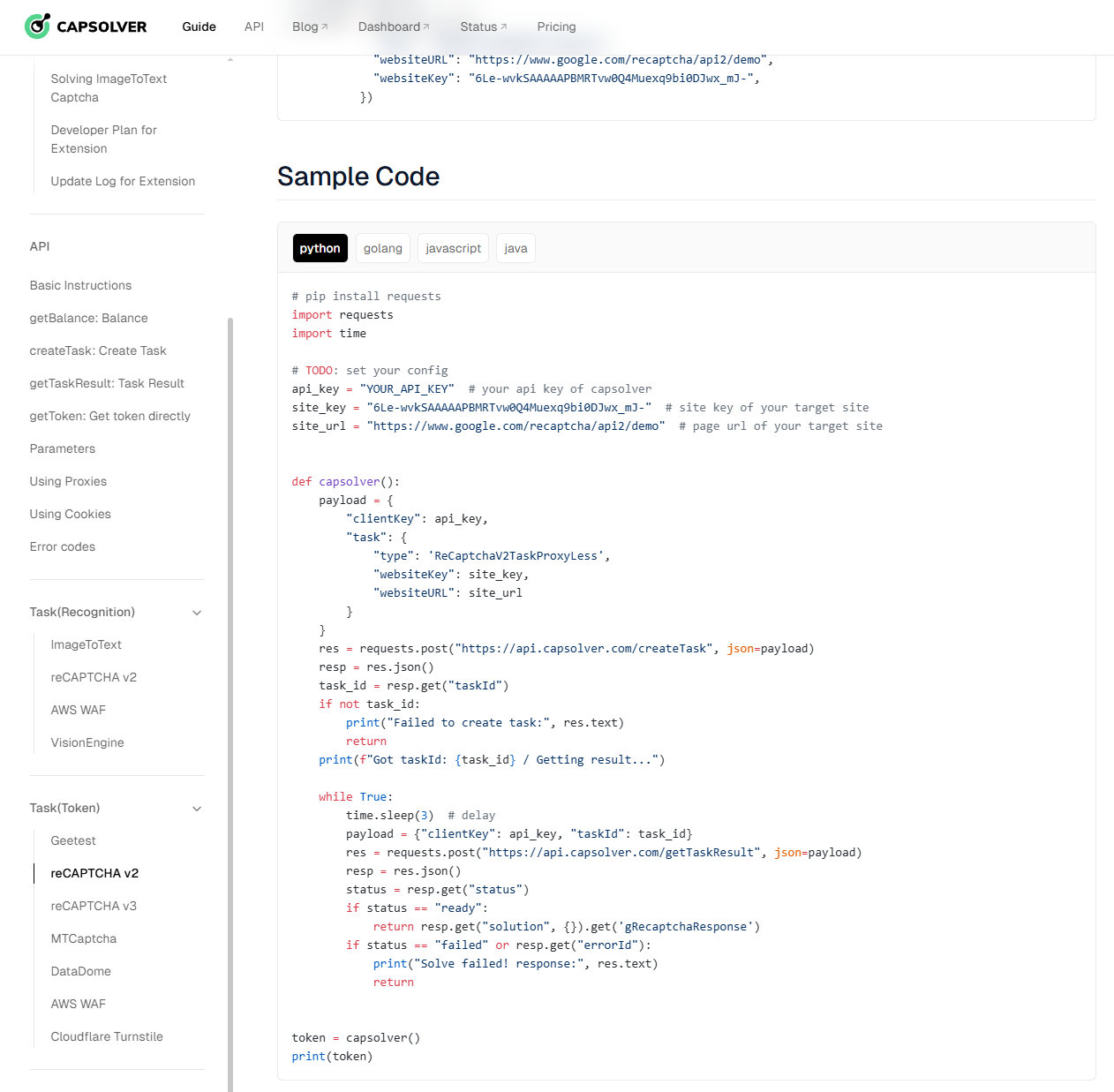
import time
import requests
from selenium import webdriver
from selenium.webdriver.chrome.service import Service
from selenium.webdriver.chrome.options import Options
from selenium.webdriver.common.by import By
from selenium.webdriver.support.ui import WebDriverWait
from selenium.webdriver.support import expected_conditions as EC

chrome_options = Options()
chrome_options.add_argument("--start-maximized")

# Specify the path to chromedriver (skip if it's already in PATH)
service = Service(executable_path="chromedriver.exe")
driver = webdriver.Chrome(options=chrome_options, service=service)

# TODO: Configure your CapSolver settings
api_key = "YOUR_API_KEY"  # Replace with your CapSolver API key
site_key = "6LfW6wATAAAAAHLqO2pb8bDBahxlMxNdo9g947u9"  # reCAPTCHA site key
site_url = "https://recaptcha-demo.appspot.com/recaptcha-v2-checkbox.php"  # Target page URL
captcha_type = 'ReCaptchaV2TaskProxyLess'

def capsolver():
    payload = {
        "clientKey": api_key,
        "task": {
            "type": captcha_type,
            "websiteKey": site_key,
            "websiteURL": site_url
        }
    }
    res = requests.post("https://api.capsolver.com/createTask", json=payload)
    resp = res.json()
    task_id = resp.get("taskId")
    if not task_id:
        print("Failed to create task:", res.text)
        return ""
    print(f"Got taskId: {task_id} / Getting result...")

    while True:
        time.sleep(1)
        payload = {"clientKey": api_key, "taskId": task_id}
        res = requests.post("https://api.capsolver.com/getTaskResult", json=payload)
        resp = res.json()
        status = resp.get("status")
        if status == "ready":
            return resp.get("solution", {}).get('gRecaptchaResponse')
        if status == "failed" or resp.get("errorId"):
            print("Solve failed! response:", res.text)
            return ""

try:
    token = capsolver()
    print("token:", token)

    driver.get(site_url)
    WebDriverWait(driver, 10).until(EC.presence_of_element_located((By.CSS_SELECTOR, 'form[action="/recaptcha-v2-checkbox.php"]')))

    # Inject the reCAPTCHA response token
    driver.execute_script("""
        const textarea = document.getElementById('g-recaptcha-response');
        if (textarea) {
            textarea.value = arguments[0];
        }
    """, token)

    # Click the submit button
    submit_button = WebDriverWait(driver, 10).until(EC.element_to_be_clickable((By.CSS_SELECTOR, 'button[type="submit"]')))
    submit_button.click()
    time.sleep(5)

except Exception as error:
    print(error)

finally:
driver.quit()Let’s continue using the example site: https://captcha.com/demos/features/captcha-demo.aspx.
On this page, the CAPTCHA image element has the ID demoCaptcha_CaptchaImage, and the input field for the result has the ID captchaCode, as shown in the screenshot below:
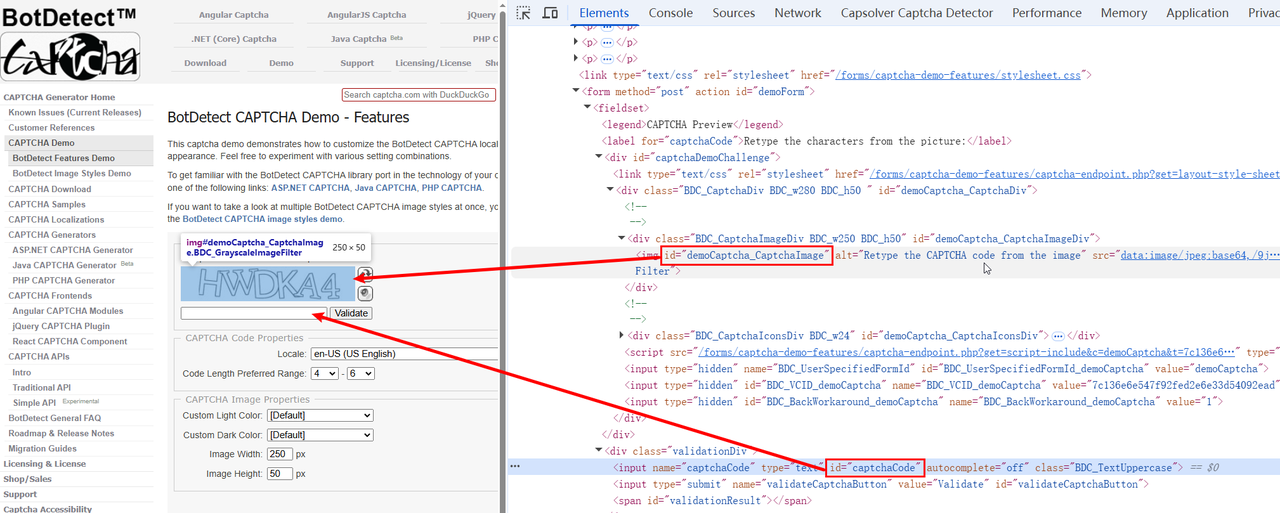
In an ImageToTextTask, we need to pass the base64-encoded value of the CAPTCHA image to CapSolver. Here’s a working example:
import time
import requests
from selenium import webdriver
from selenium.webdriver.chrome.service import Service
from selenium.webdriver.chrome.options import Options
from selenium.webdriver.common.by import By
from selenium.webdriver.support.ui import WebDriverWait
from selenium.webdriver.support import expected_conditions as EC

chrome_options = Options()
chrome_options.add_argument("--start-maximized")

# Specify chromedriver path (can be omitted if it's in your PATH)
service = Service(executable_path="chromedriver.exe")
driver = webdriver.Chrome(options=chrome_options, service=service)

# TODO: Set your CapSolver configuration
api_key = "YOUR_API_KEY"  # Replace with your CapSolver API key
site_url = "https://captcha.com/demos/features/captcha-demo.aspx"  # Target page URL
captcha_type = 'ImageToTextTask'

def capsolver(base64Image):
    payload = {
        "clientKey": api_key,
        "task": {
            "type": captcha_type,
            "websiteURL": site_url,
            "body": base64Image
        }
    }
    res = requests.post("https://api.capsolver.com/createTask", json=payload)
    resp = res.json()
    status = resp.get("status")
    if status == "ready":
        return resp.get("solution", {}).get('text')
    elif status == "failed" or resp.get("errorId"):
        print("Solve failed! response:", res.text)
        return ""
    else:
        print("Unknown response:", resp.text)
        return ""

try:
    driver.get(site_url)
    WebDriverWait(driver, 10).until(EC.presence_of_element_located((By.CSS_SELECTOR, '#demoCaptcha_CaptchaImage')))

    # Retrieve the base64 string from the captcha image's src attribute
    captcha_src = driver.execute_script("""
        const img = document.querySelector('img[id="demoCaptcha_CaptchaImage"]');
        return img ? img.getAttribute('src') : null;
    """)

    if not captcha_src:
        raise Exception("Unable to obtain captcha image!")

    base64_image = captcha_src.split(',')[1]  # Remove 'data:image/png;base64,' prefix
    captcha_text = capsolver(base64_image)
    print("Text:", captcha_text)

    # Fill in the CAPTCHA result
    driver.execute_script("""
        document.getElementById('captchaCode').value = arguments[0];
    """, captcha_text)

    # Click the validate button
    validate_button = WebDriverWait(driver, 10).until(
        EC.element_to_be_clickable((By.CSS_SELECTOR, '#validateCaptchaButton'))
    )
    validate_button.click()
    time.sleep(5)

except Exception as error:
    print(error)

finally:
    driver.quit()
For certain types of complex ImageToText CAPTCHAs, you can specify different recognition models to improve accuracy. For more details, refer to the official documentation:
👉 https://docs.capsolver.com/en/guide/recognition/ImageToTextTask/
CapSolver provides official SDKs for both Python and Golang, which allow you to integrate CAPTCHA solving with minimal effort. Unlike using the raw API (where you must manually handle createTask and getTaskResult), the SDKs simplify the entire process.
Official GitHub repositories:
Just like with the API, before solving reCAPTCHA v2, you should refer to the documentation for detailed information on which JSON parameters to send:
🔗 https://docs.capsolver.com/en/guide/captcha/ReCaptchaV2/
Additionally, you can use the CapSolver browser extension to quickly extract the required JSON data:
🔗 https://www.capsolver.com/blog/reCAPTCHA/recaptcha-v3-solver-human-score
Let’s use this page as an example:
👉 https://recaptcha-demo.appspot.com/recaptcha-v2-checkbox.php
The required JSON payload looks like this:
{
  "type": "ReCaptchaV2TaskProxyLess",
  "websiteKey": "6LfW6wATAAAAAHLqO2pb8bDBahxlMxNdo9g947u9",
  "websiteURL": "https://recaptcha-demo.appspot.com/recaptcha-v2-checkbox.php"
}pip install capsolverimport time
import capsolver
from selenium import webdriver
from selenium.webdriver.chrome.service import Service
from selenium.webdriver.chrome.options import Options
from selenium.webdriver.common.by import By
from selenium.webdriver.support.ui import WebDriverWait
from selenium.webdriver.support import expected_conditions as EC
chrome_options = Options()
chrome_options.add_argument("--start-maximized")
service = Service(executable_path="chromedriver.exe")
driver = webdriver.Chrome(options=chrome_options, service=service)
# Set your CapSolver configuration
api_key = "YOUR_API_KEY"
site_key = "6LfW6wATAAAAAHLqO2pb8bDBahxlMxNdo9g947u9"
site_url = "https://recaptcha-demo.appspot.com/recaptcha-v2-checkbox.php"
captcha_type = 'ReCaptchaV2TaskProxyLess'
capsolver.api_key = api_key
try:
# Solve using SDK
solution = capsolver.solve({
"type": captcha_type,
"websiteURL": site_url,
"websiteKey": site_key,
})
token = solution["gRecaptchaResponse"]
print("token:", token)
driver.get(site_url)
WebDriverWait(driver, 10).until(
EC.presence_of_element_located((By.CSS_SELECTOR, 'form[action="/recaptcha-v2-checkbox.php"]'))
)
driver.execute_script("""
const textarea = document.getElementById('g-recaptcha-response');
if (textarea) {
textarea.value = arguments[0];
}
""", token)
submit_button = WebDriverWait(driver, 10).until(
EC.element_to_be_clickable((By.CSS_SELECTOR, 'button[type="submit"]'))
)
submit_button.click()
time.sleep(5)
except Exception as error:
print(error)
finally:
driver.quit()Just like with the API, we’ll continue with the site:
👉 https://captcha.com/demos/features/captcha-demo.aspx
The CAPTCHA image has the ID demoCaptcha_CaptchaImage, and the result input field has the ID captchaCode.
In an ImageToTextTask, you simply need to pass the base64-encoded image to CapSolver.
import time
import capsolver
import requests
from selenium import webdriver
from selenium.webdriver.chrome.service import Service
from selenium.webdriver.chrome.options import Options
from selenium.webdriver.common.by import By
from selenium.webdriver.support.ui import WebDriverWait
from selenium.webdriver.support import expected_conditions as EC

chrome_options = Options()
chrome_options.add_argument("--start-maximized")
service = Service(executable_path="chromedriver.exe")
driver = webdriver.Chrome(options=chrome_options, service=service)

# Set your CapSolver configuration
api_key = "YOUR_API_KEY"
site_url = "https://captcha.com/demos/features/captcha-demo.aspx"
captcha_type = 'ImageToTextTask'
capsolver.api_key = api_key

try:
    driver.get(site_url)
    WebDriverWait(driver, 10).until(
        EC.presence_of_element_located((By.CSS_SELECTOR, '#demoCaptcha_CaptchaImage'))
    )

    # Get base64 string from the image
    captcha_src = driver.execute_script("""
        const img = document.querySelector('img[id="demoCaptcha_CaptchaImage"]');
        return img ? img.getAttribute('src') : null;
    """)
    if not captcha_src:
        raise Exception("Unable to obtain captcha image!")

    base64_image = captcha_src.split(',')[1]
    solution = capsolver.solve({
        "type": captcha_type,
        "websiteURL": site_url,
        "body": base64_image,
    })
    captcha_text = solution["text"]
    print("Text:", captcha_text)

    driver.execute_script("""
        document.getElementById('captchaCode').value = arguments[0];
    """, captcha_text)

    validate_button = WebDriverWait(driver, 10).until(
        EC.element_to_be_clickable((By.CSS_SELECTOR, '#validateCaptchaButton'))
    )
    validate_button.click()
    time.sleep(5)

except Exception as error:
    print(error)

finally:
driver.quit()Demo Videos Featuring the CapSolver Extension:
Additionally, CapSolver offers a Developer Revenue Sharing Program, allowing developers and partners to earn commissions by integrating or promoting CapSolver solutions. It’s a great way to monetize your work while helping others solve captchas efficiently. For full details, check out:
CapSolver Developer Plan
This guide has shown you how to effectively integrate Selenium with CapSolver for handling CAPTCHAs. We covered Selenium's core features for web automation and highlighted two main CapSolver integration methods:
Lucas Mitchell
Automation Engineer
Helping browser automation recover and continue.
ABOUT THE AUTHOR
Troubleshoot slow CAPTCHA API requests with clear checks for task creation, result polling, errors, token expiry, and the final browser action after solving.

Choose a CAPTCHA solver for product monitoring by checking challenge coverage, complete product observations, integration effort, operating cost, and support.