
🎉NEWCapSolver for AI agents-MCP, agent tools, and SDK integrations

Ethan Collins
AI Agent Workflow Engineer
Published Jun 04, 2025
Updated Jun 04, 2025 · min read
Playwright is a modern browser automation testing framework developed by Microsoft. It supports automation for Chromium, Firefox, and WebKit (which correspond to Chrome, Firefox, and Safari). It offers a powerful API for browser control, element selection, form interaction, network interception, and more—making it ideal for tasks that require deep interaction with web pages.
Any browser, Any platform, One API
Using Playwright in Node.js:
npm i playwright
npx playwright install  # Install all browsers (Chromium, Firefox, WebKit)
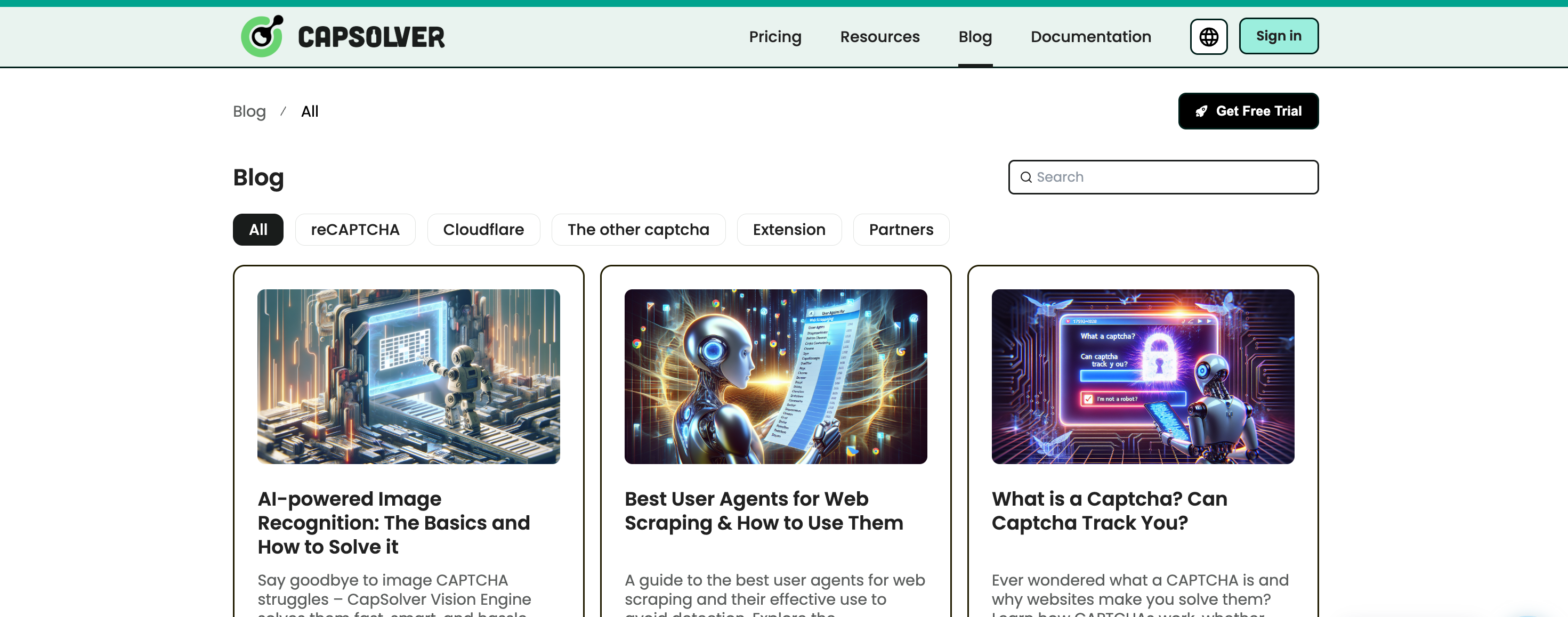
Example: Get all blog titles from CapSolver
In the example below, We use Playwirght to navigate to the CapSolver blog and grab all the <h5> blog post titles from the page
const { chromium } = require('playwright');

(async () => {
    const context = await chromium.launchPersistentContext('', {
        headless: false,
        viewport: { width: 1920, height: 1080 },
    });

    const [page] = context.pages();
    await page.goto('https://www.capsolver.com/blog/All');

    const h5Titles = await page.evaluate(() => {
        const headings = Array.from(document.querySelectorAll('h5'));
        return headings.map(heading => heading.textContent.trim());
    });

    console.log(h5Titles);
    await context.close();
})();Playwright is powerful enough to load browser extensions just like a regular browser.
--disable-extensions-except and --load-extension.const { chromium } = require('playwright');
const extensionPath = 'path/to/capsolver extension';
(async () => {
const context = await chromium.launchPersistentContext('', {
headless: false,
viewport: { width: 1920, height: 1080 },
args: [
`--disable-extensions-except=${extensionPath}`,
`--load-extension=${extensionPath}`,
],
});
const [page] = context.pages();
await page.goto('https://www.capsolver.com/blog/All');
await browser.close();
})();CAPTCHA types like reCAPTCHA v2/v3, Cloudflare Turnstile, AWS WAF, are widely used across thousands of websites. Despite their popularity, these CAPTCHAs typically have consistent and detectable DOM structures. That’s where CapSolver Extension comes in — it detects and solves them automatically without the need for manual interaction.
Let’s take reCAPTCHA v2 as an example to demonstrate how to solve it using the CapSolver Extension in Playwright.
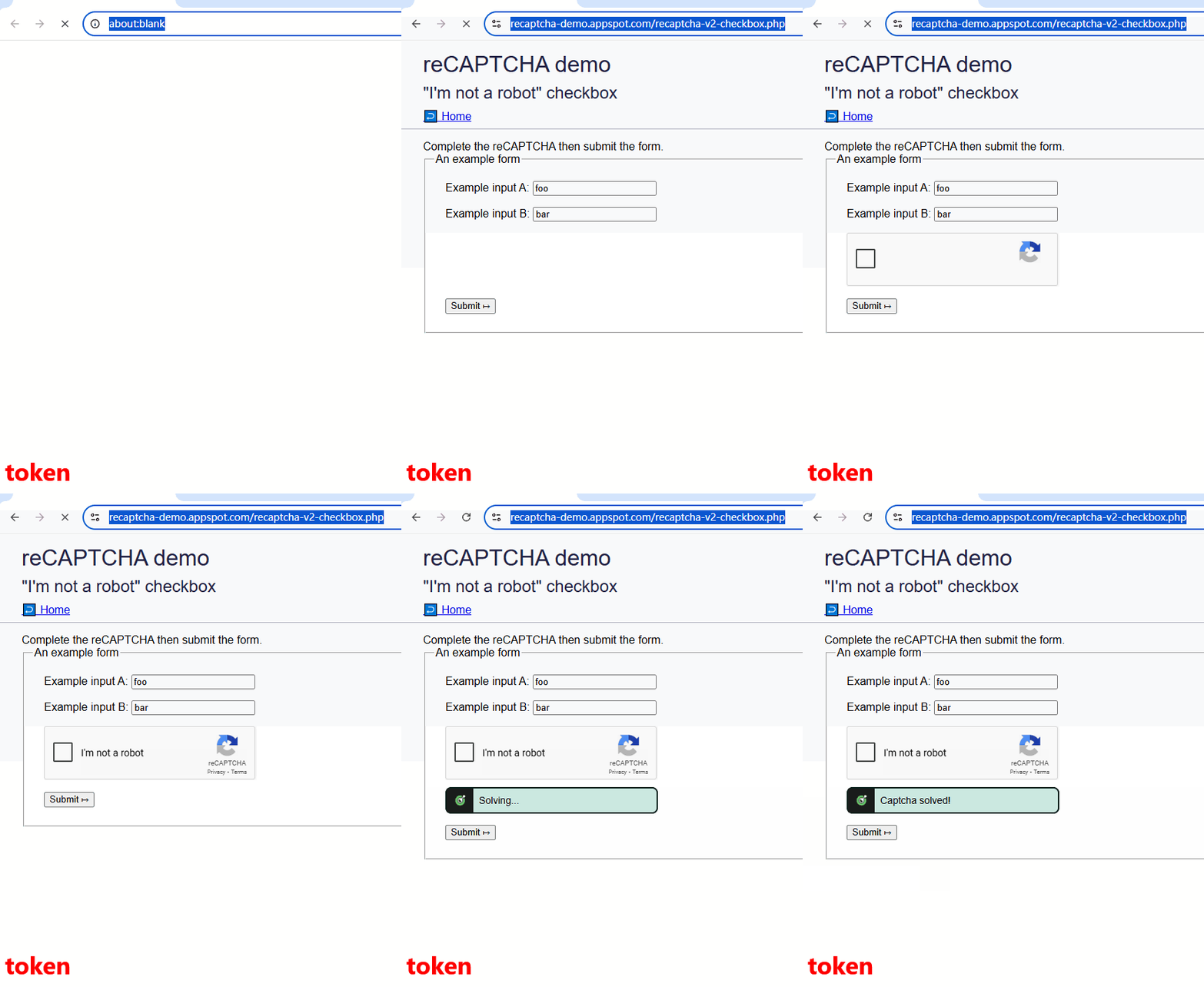
Note: Unless stated otherwise, the following examples use the click mode (/assets/config.js -> reCaptchaMode: 'click').
⚠️ Don’t forget to unzip the extension zip file and configure your
apiKeyin/assets/config.js
const { chromium } = require('playwright');

// Step 1: Download the extension from GitHub: https://github.com/capsolver/capsolver-browser-extension/releases
// Step 2: Unzip the extension file and set your apiKey in /assets/config.js
const extensionPath = 'path/to/CapSolver Browser Extension-v1.16.0';

(async () => {
    const context = await chromium.launchPersistentContext('', {
        headless: false,
        viewport: { width: 1920, height: 1080 },
        args: [
            `--disable-extensions-except=${extensionPath}`,
            `--load-extension=${extensionPath}`,
            '--lang=en-US'
        ],
    });

    const [page] = context.pages();
    await page.goto('https://recaptcha-demo.appspot.com/recaptcha-v2-checkbox.php');
    await page.waitForSelector('form[action="/recaptcha-v2-checkbox.php"]');

    // The extension will automatically detect and solve the reCAPTCHA.
    await page.waitForTimeout(15000); // Wait for solving
    await page.click('button[type="submit"]');
    await page.waitForTimeout(5000);
    await context.close();
})();
⚠️ The CapSolver extension also supports many useful configuration options. Below are some common examples (Note: All configurations are set in
/assets/config.js)
solvedCallbackAs you may have noticed, in the previous code we waited 15 seconds after loading the page before clicking the submit button. This delay was intended to give the CapSolver extension enough time to automatically solve the reCAPTCHA. However, this approach isn't ideal—sometimes the CAPTCHA is solved much faster, and in poor network conditions, it might take even longer than 15 seconds.
That's where the solvedCallback comes in. It provides a better solution by triggering a callback once the CAPTCHA has been solved, notifying you that verification is complete. You can configure the solvedCallback in /assets/config.js by defining a custom function name—by default, it's captchaSolvedCallback. Then, use page.exposeFunction in Playwright to expose this function within the browser context.
Let’s now improve our previous code using this approach.
const { chromium } = require('playwright');

const extensionPath = 'path/to/CapSolver Browser Extension-v1.16.0';

(async () => {
    const context = await chromium.launchPersistentContext('', {
        headless: false,
        viewport: { width: 1920, height: 1080 },
        args: [
            `--disable-extensions-except=${extensionPath}`,
            `--load-extension=${extensionPath}`,
            '--lang=en-US'
        ],
    });

    const [page] = context.pages();
    await page.goto('https://recaptcha-demo.appspot.com/recaptcha-v2-checkbox.php');
    await page.waitForSelector('form[action="/recaptcha-v2-checkbox.php"]');

    await page.exposeFunction('captchaSolvedCallback', async () => {
        console.log('Captcha solved!');

        const iframe = await page.$('iframe[src*="recaptcha"]');
        if (iframe) {
            const frame = await iframe.contentFrame();
            const finished = await frame.evaluate(() => {
                const element = document.querySelector('.recaptcha-checkbox-border');
                return element && window.getComputedStyle(element).display === 'none';
            });

            if (finished) {
                console.log('Verification completed!');
                await page.click('button[type="submit"]');
                await page.waitForTimeout(3000);
                await context.close();
            } else {
                console.log('Verification not complete. Retrying...');
            }
        }
    });
})();
For reCAPTCHA v2, sometimes multiple image challenges may appear. So after each challenge, we check if the "I'm not a robot" checkbox has been checked—if it’s gone, the verification is considered complete.
manualSolvingIn earlier examples, CAPTCHA solving began immediately upon page load. However, in some scenarios, you may need to perform other tasks first—like entering a username/password—before triggering CAPTCHA solving. Starting too early might cause the token to expire.
To handle this, set manualSolving: true in /assets/config.js, which allows you to manually trigger the CAPTCHA-solving process.
There are two ways to trigger solving:
window.postMessage({ type: 'capsolverSolve' });⚠️ Note: This feature is only supported in extension versions higher than v1.16.0!
Example:
const { chromium } = require('playwright');

const extensionPath = 'path/to/CapSolver Browser Extension-v1.16.0';

(async () => {
    const context = await chromium.launchPersistentContext('', {
        headless: false,
        viewport: { width: 1920, height: 1080 },
        args: [
            `--disable-extensions-except=${extensionPath}`,
            `--load-extension=${extensionPath}`,
            '--lang=en-US'
        ],
    });

    const [page] = context.pages();
    await page.goto('https://recaptcha-demo.appspot.com/recaptcha-v2-checkbox.php');
    await page.waitForSelector('form[action="/recaptcha-v2-checkbox.php"]');

    // Simulate filling in credentials
    await page.evaluate(() => {
        const inputA = document.querySelector('input[name="ex-a"]');
        inputA.value = 'username';
        const inputB = document.querySelector('input[name="ex-b"]');
        inputB.value = 'password';
    });

    // Simulate other delays or user activity
    for (let i = 1; i <= 5; i++) {
        await page.waitForTimeout(1000);
        console.log(`Waited ${i} seconds...`);
    }

    console.log('Start solving CAPTCHA...');

    // Method 1: Simulate clicking the CapSolver button
    await page.evaluate(() => {
        document.querySelector('#capsolver-solver-tip-button').click();
    });

    // Method 2: Trigger using postMessage
    // await page.evaluate(() => {
    //     window.postMessage({ type: 'capsolverSolve' });
    // });

    await page.exposeFunction('captchaSolvedCallback', async () => {
        console.log('Captcha solved!');

        const iframe = await page.$('iframe[src*="recaptcha"]');
        if (iframe) {
            const frame = await iframe.contentFrame();
            const finished = await frame.evaluate(() => {
                const element = document.querySelector('.recaptcha-checkbox-border');
                return element && window.getComputedStyle(element).display === 'none';
            });

            if (finished) {
                console.log('Verification completed!');
                await page.click('button[type="submit"]');
                await page.waitForTimeout(3000);
                await context.close();
            } else {
                console.log('Verification not complete. Try again.');
            }
        }
    });
})();reCaptchaModeThe reCaptchaMode setting supports two modes: click and token.
If you're experiencing multiple rounds of image selection using click mode, it's likely due to a low browser fingerprint score. Switching to token mode is recommended for better reliability.
| Click Mode | Token Mode |
|---|---|
 |
 |
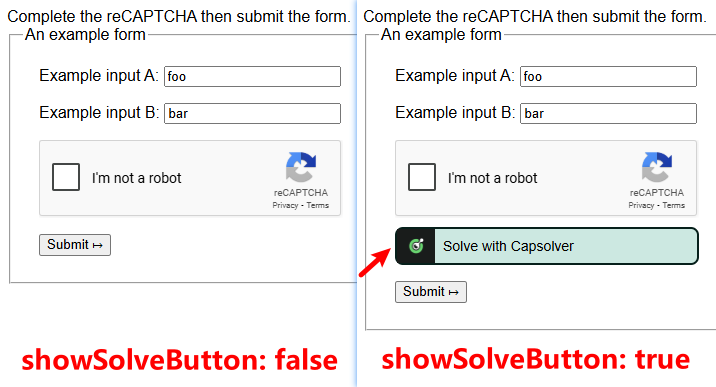
showSolveButtonWhen showSolveButton is set to false (default is true), the CapSolver button will no longer be displayed on the page. However, this will not affect the normal CAPTCHA-solving functionality.
After setting useProxy: true, you can specify the following parameters: proxyType, hostOrIp, port, proxyLogin, and proxyPassword. With this setup, we will use your custom proxy to solve the CAPTCHA. When should you use your own proxy? Typically, in the following situations:
The above are some commonly used configuration options. You can adjust other settings according to your actual needs. If you have any questions, please contact our customer support.
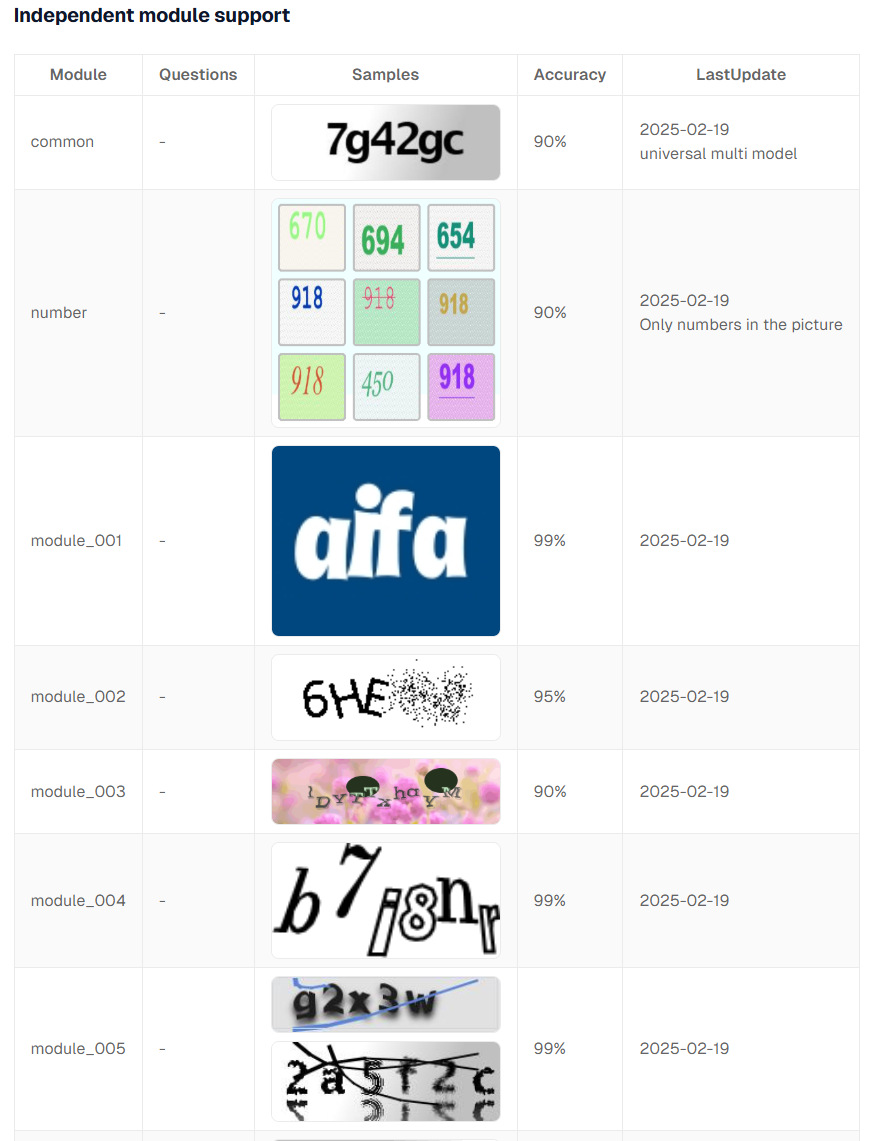
Unlike third-party CAPTCHAs such as reCAPTCHA, Cloudflare Turnstile, AWS WAF, or GeeTest, there’s another type of CAPTCHA that requires recognizing letters or digits from an image. We refer to these as ImageToText CAPTCHAs. They typically look like this:
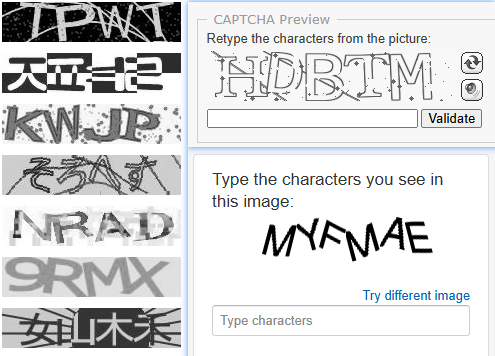
ImageToText is a CAPTCHA implemented by website administrators themselves. Unlike third-party CAPTCHAs, ImageToText CAPTCHAs are custom-made by website owners. Because these CAPTCHAs vary in placement across different websites and pages, the CapSolver Extension cannot automatically detect which images are CAPTCHAs. Therefore, you must explicitly inform the CapSolver Extension in your code. Here's how to do it:
capsolver-image-to-text-source attribute with the value 0 to the image element of the CAPTCHA;capsolver-image-to-text-result attribute with the value 0 to the input field where the result should be filled in.These attributes—capsolver-image-to-text-source and capsolver-image-to-text-result—can be configured in /assets/config.js using the fields textCaptchaSourceAttribute and textCaptchaResultAttribute, respectively.
Let’s walk through an example using the site:
https://captcha.com/demos/features/captcha-demo.aspx
First, inspect the page source to locate the CAPTCHA image element and the result input field. In this case:
demoCaptcha_CaptchaImagecaptchaCode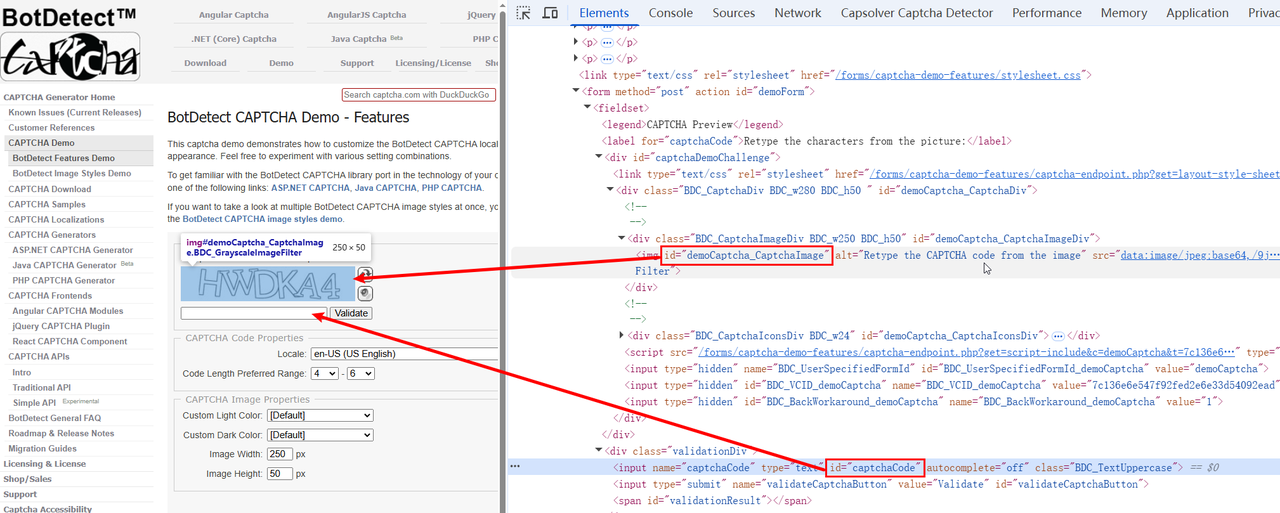
Now, let's use Playwright to automate solving this CAPTCHA by marking these elements accordingly:
const { chromium } = require('playwright');

// Step 1: Get the extension from GitHub (https://github.com/capsolver/capsolver-browser-extension/releases)
// Step 2: Unzip the extension zip file and configure your apiKey in /assets/config.js
const extensionPath = 'path/to/CapSolver Browser Extension-v1.16.0';

(async () => {
    const context = await chromium.launchPersistentContext('', {
        headless: false,
        viewport: { width: 1920, height: 1080 },
        args: [
            `--disable-extensions-except=${extensionPath}`,
            `--load-extension=${extensionPath}`,
            '--lang=en-US'
        ],
    });

    const [page] = context.pages();
    await page.goto('https://captcha.com/demos/features/captcha-demo.aspx');
    await page.waitForSelector('#demoCaptcha_CaptchaImage');

    // Tell the CapSolver Extension where the CAPTCHA image is located
    await page.evaluate(() => {
        const imgElement = document.querySelector('#demoCaptcha_CaptchaImage');
        if (imgElement) {
            imgElement.setAttribute('capsolver-image-to-text-source', '0');
        }
    });

    // Tell the CapSolver Extension where the recognition result should be input
    await page.evaluate(() => {
        const resultElement = document.querySelector('#captchaCode');
        if (resultElement) {
            resultElement.setAttribute('capsolver-image-to-text-result', '0');
        }
    });

    // Wait for the CAPTCHA to be solved and submit the form
    await page.exposeFunction('captchaSolvedCallback', async () => {
        console.log('Captcha solved!');
        await page.waitForTimeout(3000);
        await page.click('#validateCaptchaButton');
        await page.waitForTimeout(3000);
        await context.close();
    });
})();
Result:

Using the CapSolver Extension is convenient and quick, but if you're an experienced developer, we highly recommend using the API integration instead. Compared to the extension-based method, the API approach offers several key advantages:
Before we dive into the code demo, here's a quick overview of how to use the CapSolver API:
To create a task, you'll need to send a JSON object to CapSolver. This JSON includes your clientKey, websiteURL, websiteKey, and other data. These fields vary depending on the CAPTCHA type and website.
👉 For details, refer to our documentation:documentation
Before solving reCAPTCHA v2, please read the documentation here:
📖 ReCaptchaV2
This guide explains which JSON parameters to include when creating a task.
Additionally, you can use the CapSolver Extension to quickly generate JSON data for your API requests.
See this blog for help:
🔗 obtain the JSON data
Let's take the following example:
🔗 https://recaptcha-demo.appspot.com/recaptcha-v2-checkbox.php
The JSON required to create a task for this page is:
{
    "type": "ReCaptchaV2TaskProxyLess",
    "websiteKey": "6LfW6wATAAAAAHLqO2pb8bDBahxlMxNdo9g947u9",
    "websiteURL": "https://recaptcha-demo.appspot.com/recaptcha-v2-checkbox.php"
}
We also provide JavaScript code samples for using the API in our documentation:
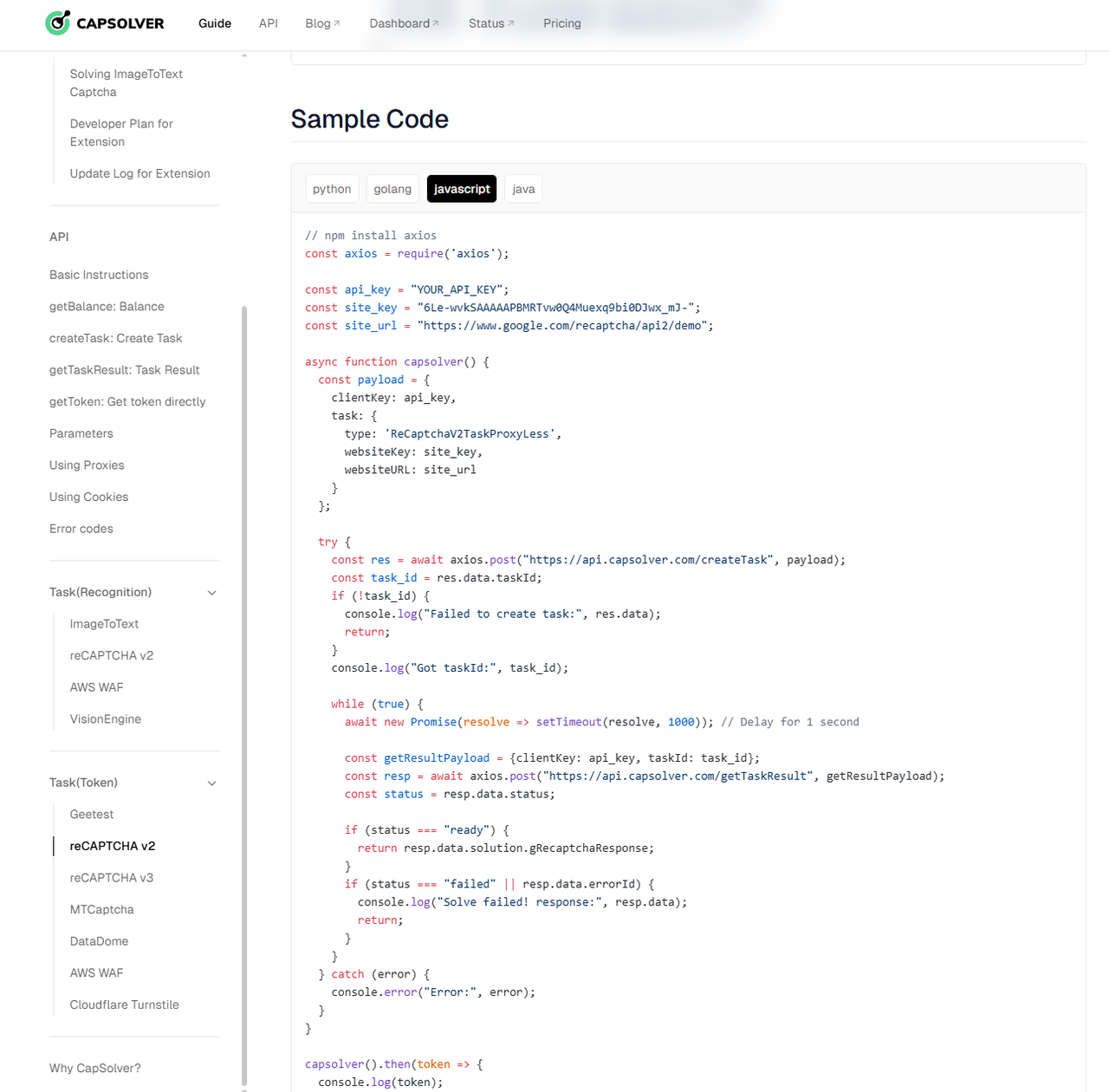
Integration in Playwright:
const { chromium } = require('playwright');
const axios = require('axios');

// Replace with your API key
const api_key = 'YOUR_API_KEY';
const captcha_type = 'ReCaptchaV2TaskProxyLess';
const site_key = '6LfW6wATAAAAAHLqO2pb8bDBahxlMxNdo9g947u9';
const site_url = 'https://recaptcha-demo.appspot.com/recaptcha-v2-checkbox.php';

async function capSolver() {
    const payload = {
        clientKey: api_key,
        task: {
            type: captcha_type,
            websiteKey: site_key,
            websiteURL: site_url
        }
    };

    try {
        const res = await axios.post('https://api.capsolver.com/createTask', payload);
        const task_id = res.data.taskId;
        if (!task_id) {
            console.log('Failed to create task:', res.data);
            return;
        }
        console.log('Got taskId:', task_id);

        while (true) {
            await new Promise(resolve => setTimeout(resolve, 1000)); // Delay for 1 second

            const getResultPayload = { clientKey: api_key, taskId: task_id };
            const resp = await axios.post('https://api.capsolver.com/getTaskResult', getResultPayload);
            const status = resp.data.status;

            if (status === 'ready') {
                return resp.data.solution.gRecaptchaResponse;
            }
            if (status === 'failed' || resp.data.errorId) {
                console.log('Solve failed! response:', resp.data);
                return;
            }
        }
    } catch (error) {
        console.error('Error:', error);
    }
}

(async () => {
    const context = await chromium.launchPersistentContext('', {
        headless: false,
        viewport: { width: 1920, height: 1080 },
        args: ['--lang=en-US'],
    });

    const [page] = context.pages();
    await page.goto('https://recaptcha-demo.appspot.com/recaptcha-v2-checkbox.php');
    await page.waitForSelector('form[action="/recaptcha-v2-checkbox.php"]');

    const token = await capSolver();
    console.log("Token:", token);

    // Set the token value
    await page.evaluate((token) => {
        const textarea = document.getElementById('g-recaptcha-response');
        if (textarea) {
            textarea.value = token;
        }
    }, token);

    await page.click('button[type="submit"]');
    await page.waitForTimeout(5000);
    await context.close();
})();We still use the example of https://captcha.com/demos/features/captcha-demo.aspx, where the captcha image element has the id demoCaptcha_CaptchaImage, and the result input element has the id captchaCode, as shown in the following image:
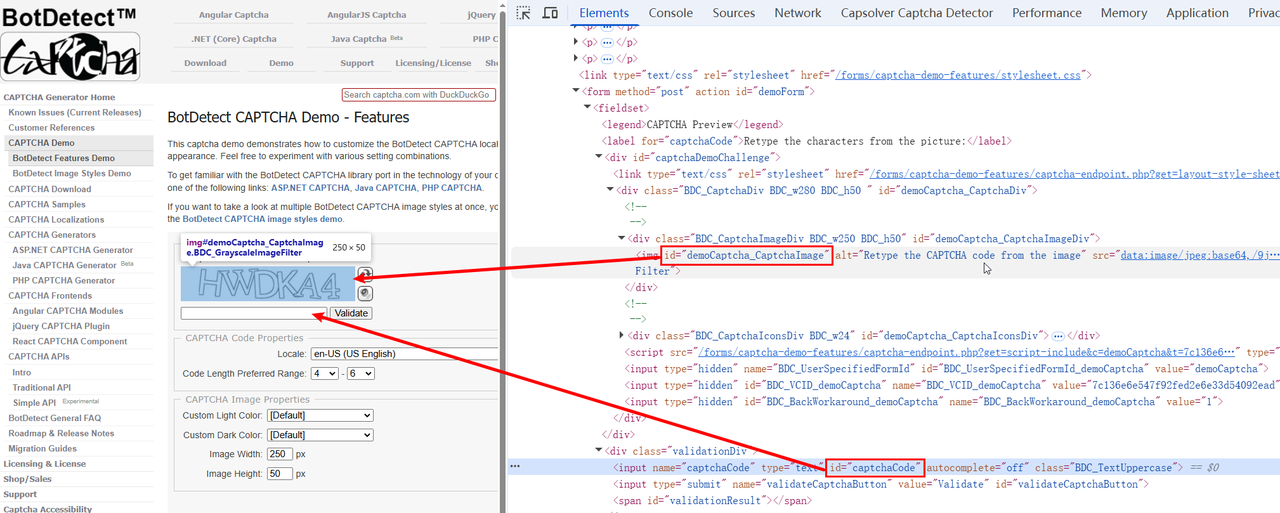
For ImageToTextTask, we need to pass the base64 value of the captcha image to CapSolver. The example code is as follows:
const { chromium } = require('playwright');
const axios = require('axios');

// Replace with your API key
const api_key = 'YOUR_API_KEY';
const captcha_type = 'ImageToTextTask';
const site_url = 'https://captcha.com/demos/features/captcha-demo.aspx';

async function capSolver(base64Image) {
    const payload = {
        clientKey: api_key,
        task: {
            type: captcha_type,
            websiteURL: site_url,
            body: base64Image,
        }
    };

    try {
        const res = await axios.post('https://api.capsolver.com/createTask', payload);

        const status = res.data.status;
        if (status === 'ready') {
            return res.data.solution.text;
        }
        if (status === 'failed' || res.data.errorId) {
            console.log('Solve failed! response:', res.data);
            return "";
        }
    } catch (error) {
        console.error('Error:', error);
    }
}

(async () => {
    const context = await chromium.launchPersistentContext('', {
        headless: false,
        viewport: { width: 1920, height: 1080 },
        args: ['--lang=en-US'],
    });

    const [page] = context.pages();
    await page.goto('https://captcha.com/demos/features/captcha-demo.aspx');
    await page.waitForSelector('#demoCaptcha_CaptchaImage');

    // Get the base64 value of the captcha image
    const captchaImage = await page.evaluate(() => {
        const img = document.querySelector('img[id="demoCaptcha_CaptchaImage"]');
        return img ? img.getAttribute('src') : null;
    });
    const base64Image = captchaImage.split(',')[1];

    const text = await capSolver(base64Image);
    console.log("Text:", text);

    // Set the solved captcha text
    await page.evaluate((text) => {
        document.getElementById('captchaCode').value = text;
    }, text);

    await page.click('#validateCaptchaButton');
    await page.waitForTimeout(5000);
    await context.close();
})();
Additionally, for some special ImageToText types, you can specify different models to improve accuracy. For details, please refer to our documentation:
https://docs.capsolver.com/en/guide/recognition/ImageToTextTask/
Demo Videos Featuring the CapSolver Extension:
Additionally, CapSolver offers a Developer Revenue Sharing Program, allowing developers and partners to earn commissions by integrating or promoting CapSolver solutions. It’s a great way to monetize your work while helping others solve captchas efficiently. For full details, check out:
CapSolver Developer Plan
Playwright's robust features, combined with CapSolver's ability to handle CAPTCHAs, offer a comprehensive solution for web automation. Whether using the CapSolver extension for convenience or the API for greater control, this integration streamlines complex tasks and enhances automation workflows. Beyond just solving CAPTCHAs, remember that CapSolver also offers a Developer Revenue Sharing Program, providing an excellent opportunity to earn commissions by integrating or promoting their solutions
Ethan Collins
AI Agent Workflow Engineer
Building clearer handoffs between AI agents and tools.
ABOUT THE AUTHOR
Troubleshoot slow CAPTCHA API requests with clear checks for task creation, result polling, errors, token expiry, and the final browser action after solving.
Choose a CAPTCHA solver for product monitoring by checking challenge coverage, complete product observations, integration effort, operating cost, and support.